

UI Displays – JSON Export & Import Guide
This guide provides general instructions for exporting and importing UI displays as JSON files in a production environment.
Exporting JSON Files
Displays can be exported as individual .json files from the navigation tree in View or by using the VtrinCmd command-line tool. Each display is exported as its own file, following the structure of the navigation tree.
The exported JSON file contains:
- TreeNode instances
- Related UIString instances
- Related references (used for "Send To" functionality)
- Property bag (dashboard configuration)
Export from the Navigation Tree
In the View, right‑click a display in the navigation tree and select the desired export option. The exported file is saved to your Downloads folder.
The exported file can then be:
- moved manually to another system (for example, from a development environment to a production system), or
- stored as a backup and imported later when needed
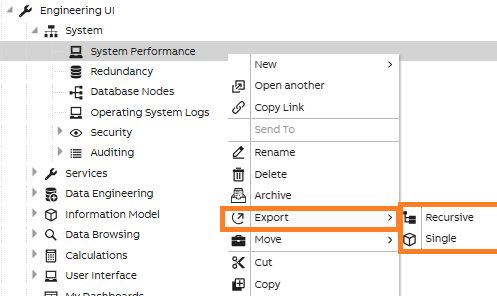
Export -> Single
Exports only the selected display. Useful for exporting or backing up a single display.
Export -> Recursive
Exports the selected display and all child displays. Useful for exporting complete display hierarchies or moving displays between environments.
Export Using VtrinCmd
JSON exports can also be done using the VtrinCmd command-line tool. Both single displays and display hierarchies can be exported.
For detailed instructions and examples, see Using VtrinCmd as the Export Tool
Importing JSON Files
Importing displays can be done using the VtrinCmd command-line tool. It is available for both Linux and Windows. Displays can be imported through a remote or local connection.
Example:
VtrinCmd --connectionstring /path/to/your/data --importjson "path-to-file.json"
For detailed import instructions and examples, see Using VtrinCmd as the Import Tool.
Further Reading:
Learn more about VtrinCmd tool
Using VtrinCmd as the Export Tool
Using VtrinCmd as the Import Tool
Updated 16 days ago