

Batch job dashboard tutorial
This tutorial is part of our Batch Job example
This tutorial will show an example of how to create a dashboard for tracking batches and property values within. This is part of our cookie production example .
Overview
This dashboard is used for production and quality control as it shows raw material information for each production batch. This monitor enables to track e.g. container temperatures and raw material amounts for each produced batch.
First we navigate to the dashboard editor. It can be reached at https://{your History url}/view. Open the Tree window and create a new dashboard to chosen folder. Then we will open the widget library and start adding our widgets to dashboard using the drag & drop mechanism.
Structure of the dashboard
Picture below shows our finished monitor and below is a list of all the widgets we used.
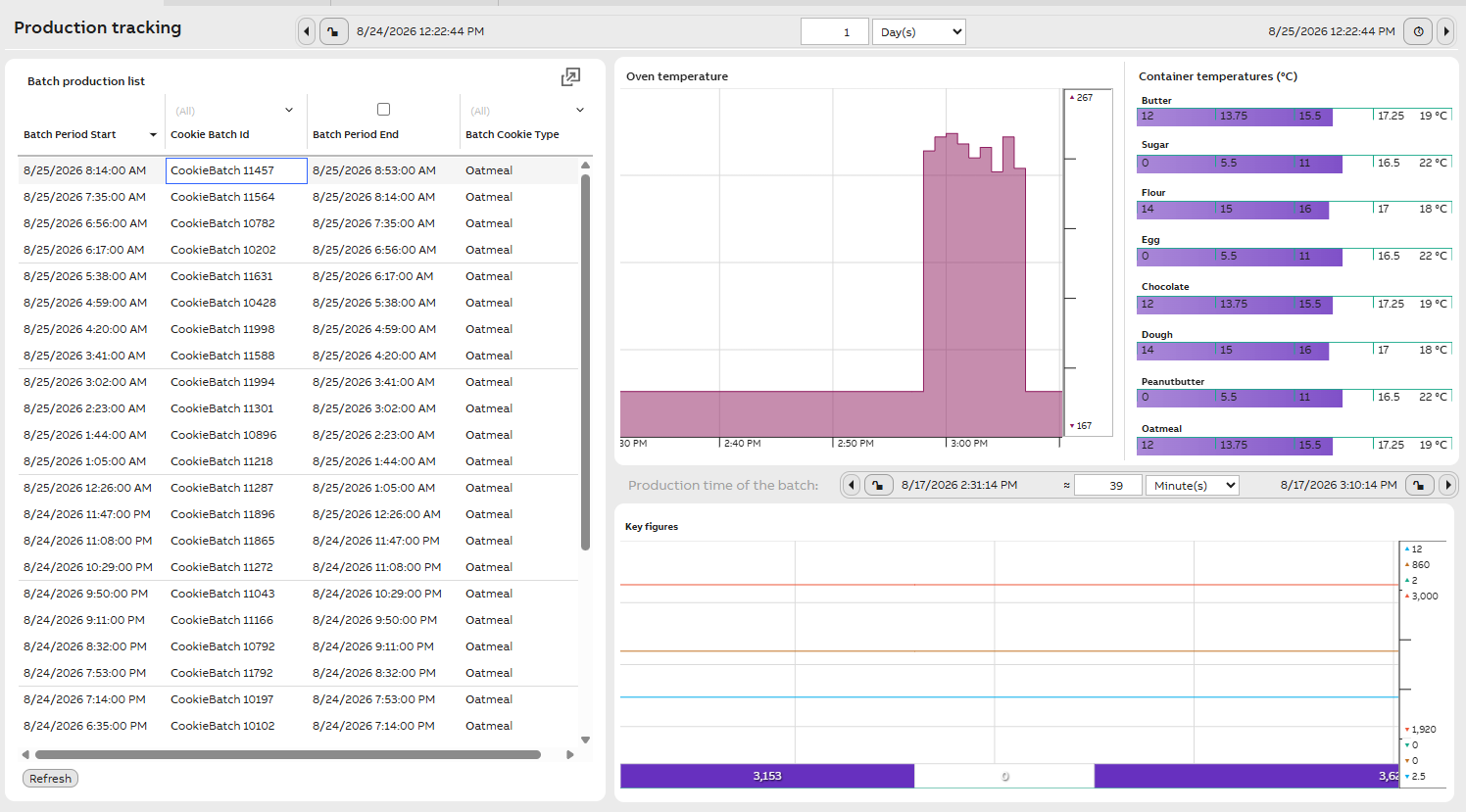
Widgets on batch job monitoring dashboard:
- Datalist and timebar: This datalist shows batch id's and start and end time of each batch. We attached time bar (the one on the top right of the display showing 1 day period) to our start time property so that datalist shows batches in chronological order over a one day period.
- Value bars: These are used to show raw material container temperatures.
- Value widgets and labels: Value widgets are used to show single property values. Labels on top indicate name of property value shown.
- Charts and ruler: We use chart widgets to show oven temperature changes and other key figures, e.g. total cookie bag number, total pallet number and pallet ids, total price. These are all per batch values. Rulers are used to give value scaling.
- Time bar: The second time bar (we will call this timebar2) above the chart is used for showing the production time of each batch. This requires some advanced setting that we will go through below.
- Labels: In addition we added a few labels to show title for each widget.
- Panels: Panels we use as backgrounds of widgets to divide the data for better readability.
Step-by-step guide
Step 1: Time bar settings
First we make our timebar2 (time bar connected to chart) listen to our datalist widget. This can be done in timebar2 property settings Listen to Context and we add our datalist widget there.
Then on our timebar2 settings we will further define Advanced settings as shown below.
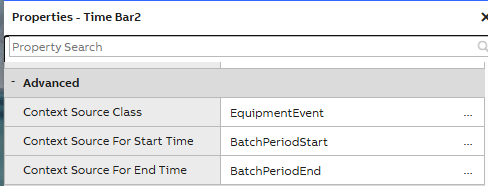
As the picture above shows, we have added our batch start and end time, which we have in our calculation written in EquipmentEvent class (as explained in our batch example, we are writing some values to existing EquipmentEvent class that allows bigger logging tables).
Now our timebar2 will show duration as well as start and end time of each production batch when one Cookie Batch Id is being selected on the datalist. Example below.

Step 2: Chart settings
Next we will make our chart widget listen to our timebar2. This can be done similarly in chart property settings Listen to Context. With this, the data in our chart widget will update according to the time period shown in timebar2.
Step 3: Value bar and Value widget settings
To make our value bars and value widgets listen to batch id changes, we need to configure settings slightly differently.
- We open one widget property settings and search for Value Accessor property. For this we select History Value.
- Then we open further settings by pressing the three dots. On opened menu we search Type property and choose fetch. This is used when history values are being fetched from database and attached to timebar ( If we would choose subscription here, the widget will not show value as intended.)
- Then for Time Bar property we select our timebar2.
For each value bar and single value widget, we repeat these steps and add the data we want. In our case it's the temperature and amount values.
An example of these settings is shown below.
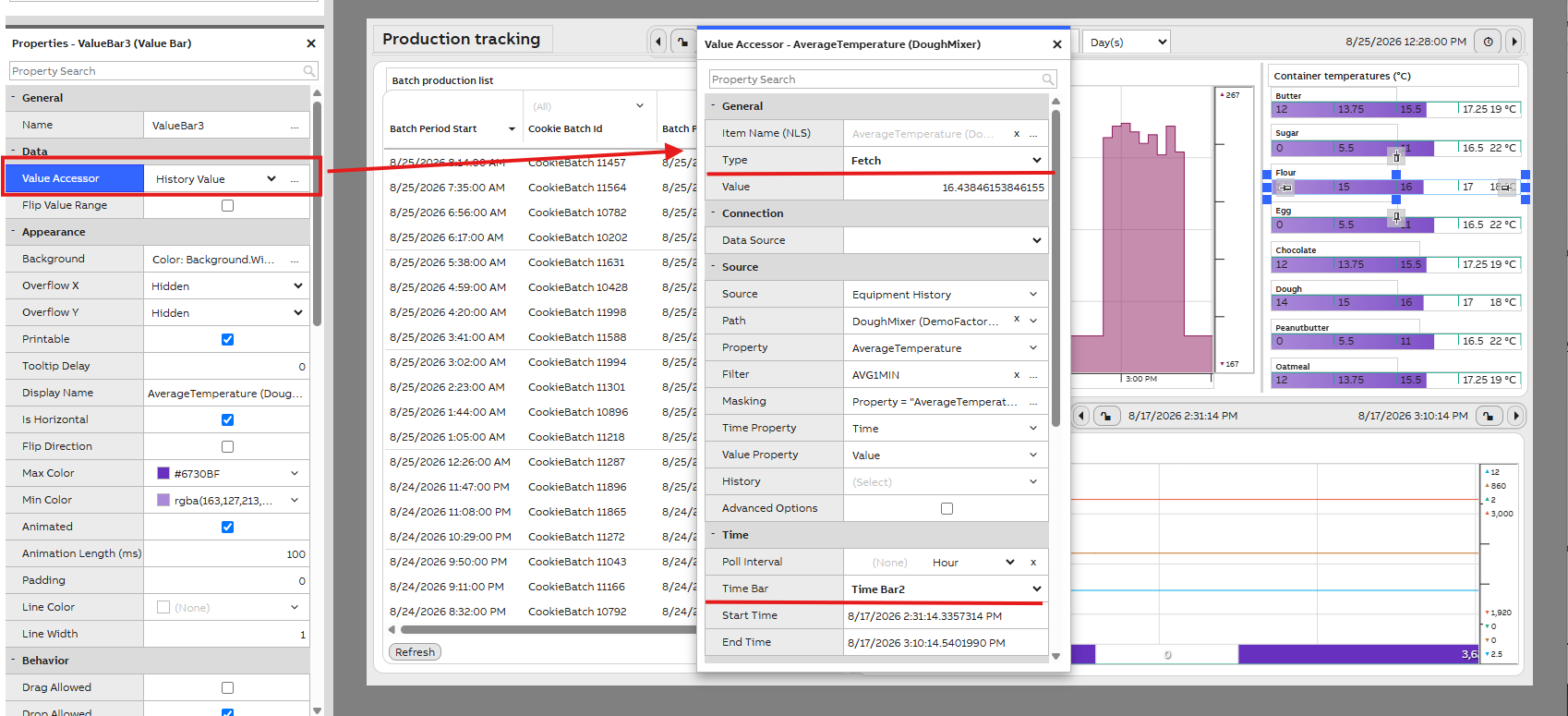
Step 4: Save and test
After all settings are done, we can save dashboard settings, close the edit mode and test that everything works. In our case, we choose one Cookie Batch Id from our datalist and now the data in our timebar2, chart and other widgets should change accordingly.
Updated 19 days ago