

Preserve the Context when navigating between dashboards
The document provides a step-by-step guide to creating a main dashboard with a Select and Label widget, setting up two sub dashboards that listen to context from the main dashboard, and integrating them using a Navigation Tree to ensure context persistence when switching between tabs.
Before starting the steps below, create a folder (for example, SubDashboards). Within that folder, create two sub-dashboards: PreserveContext_Sub and PreserveContext_Sub2 under the root folder or a user-desired folder.
1. Create Main Dashboard with a Select Widget, Label Widget and Navigation Tree
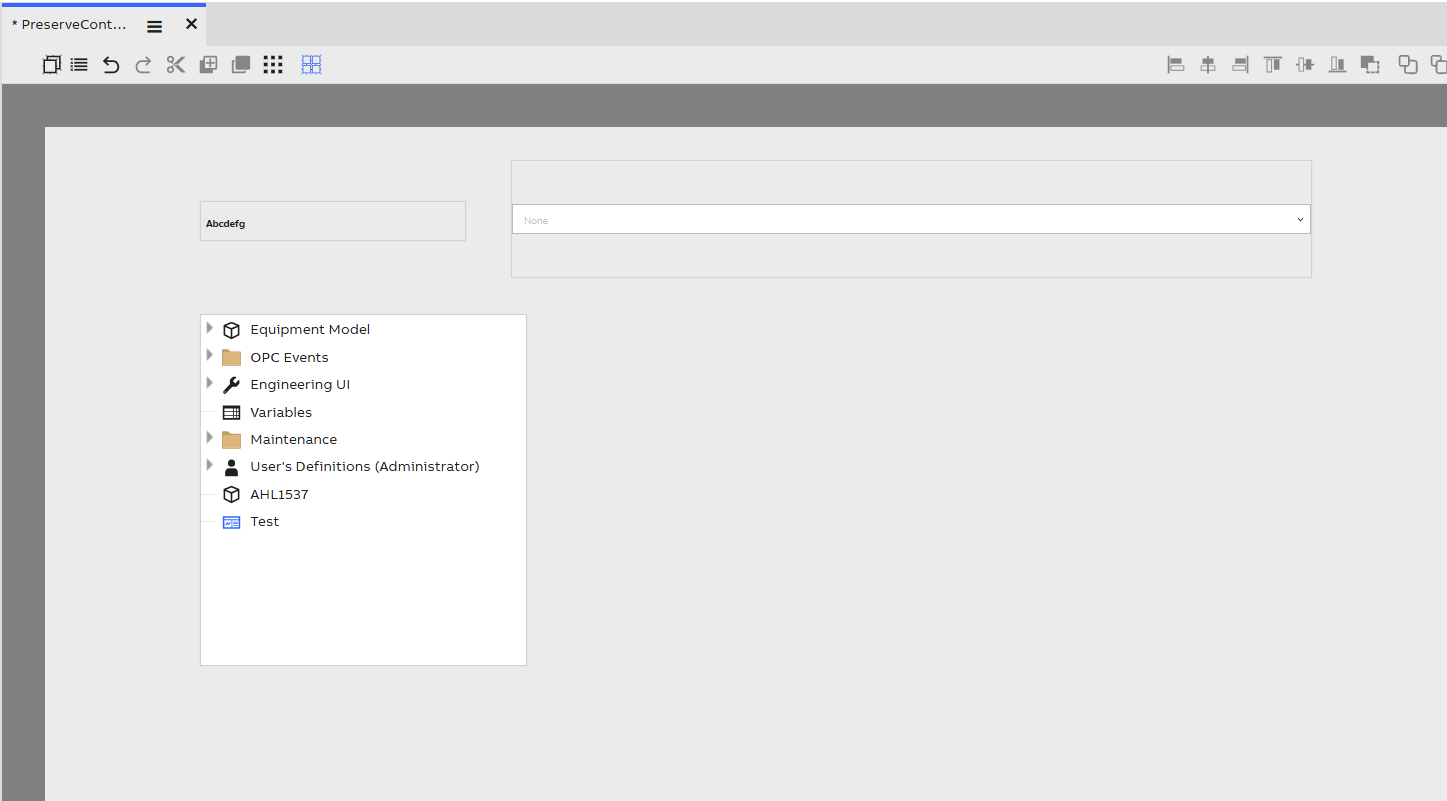
- Create a main dashboard with a Select Widget and configure the Source as Variable
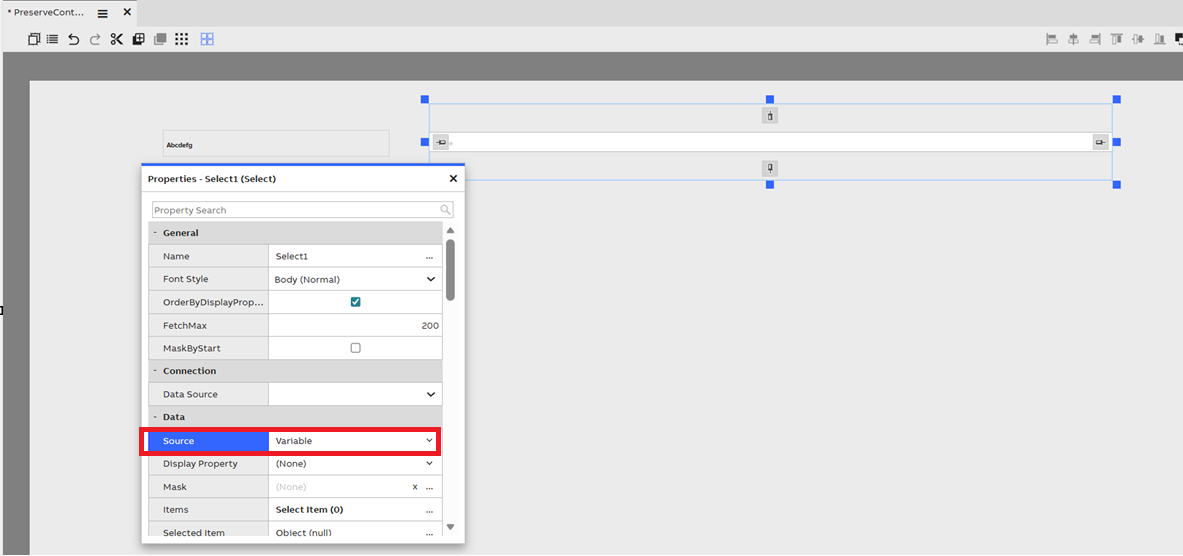
- Add a Label widget in the main dashboard and Listen to Context from Select Widget so that selected name will be displayed in the Label widget
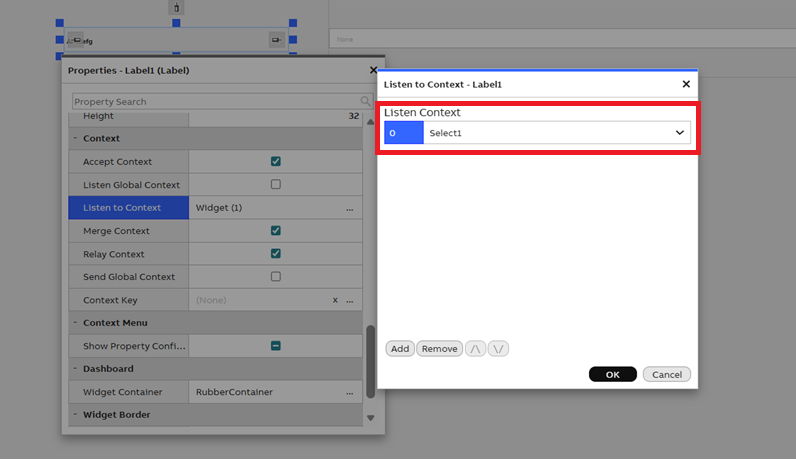
2. Create Subdashboards folder and create Sub Dashboard 1 and 2 with a Label widget and listens context from Main Dashboard.
- Create two sub dashboards with a Label widget under a new folder.
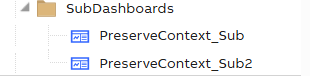
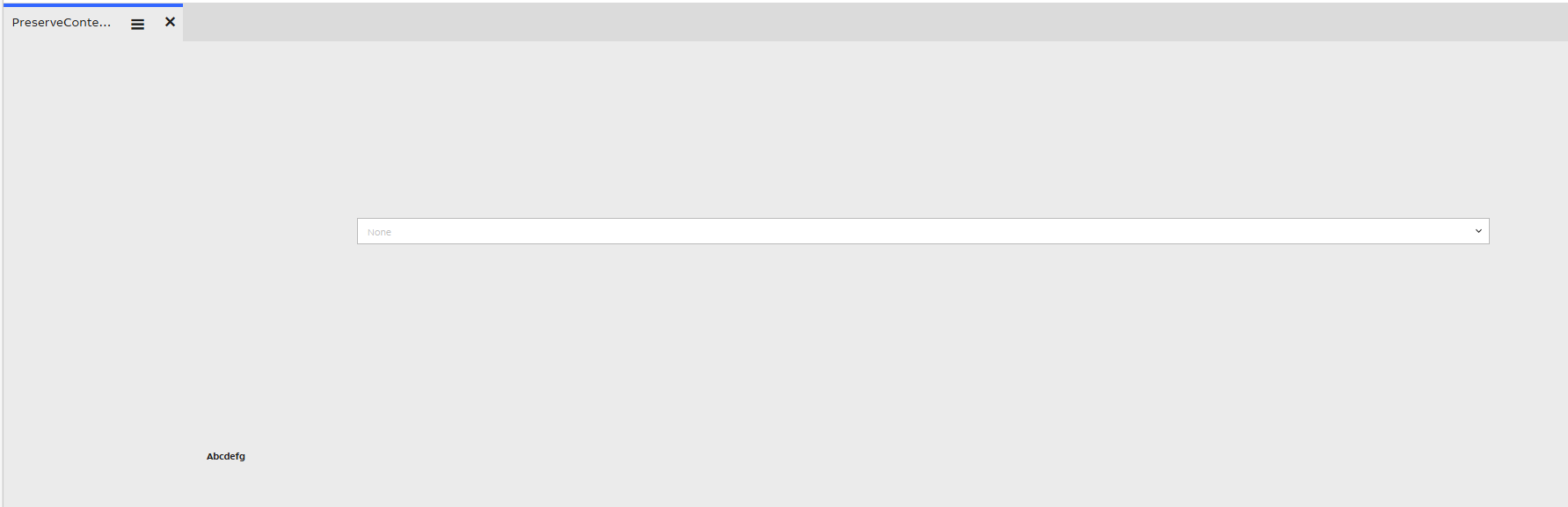
- Click on empty area on the dashboard to see properties and add handlers as shown in the below screenshot.
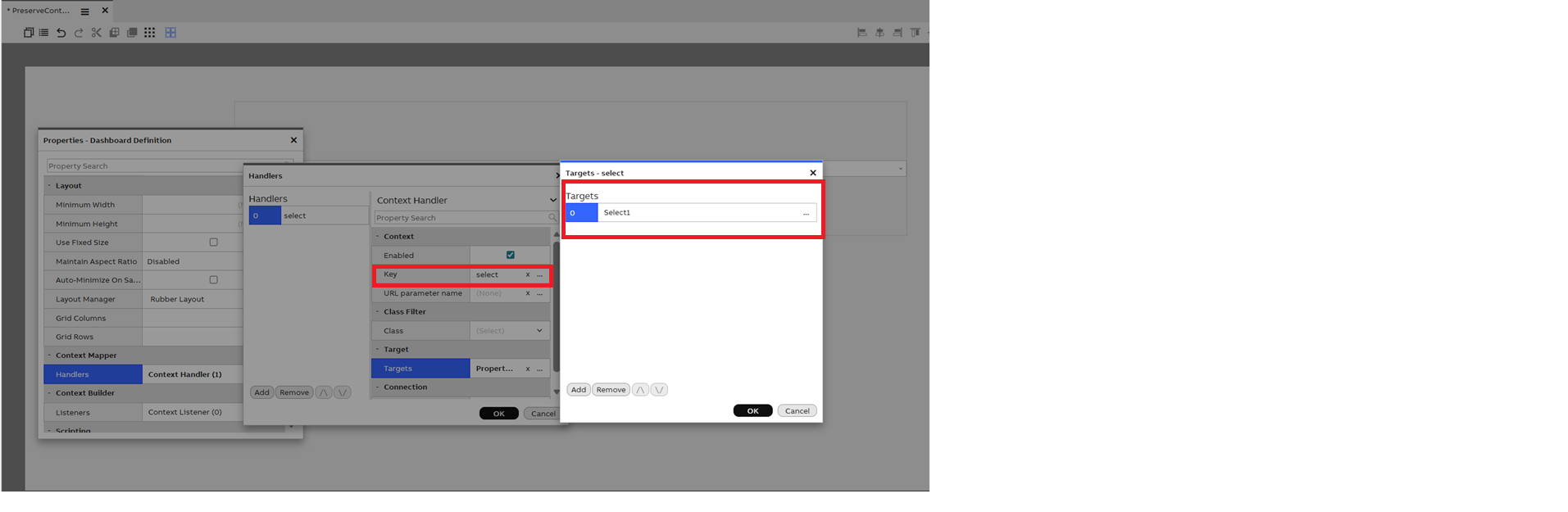
- Add a Label widget in the sub dashboard and Listen to Context from Select Widget so that selected name will be displayed in the Label widget, and also add Context Key as 'label'.
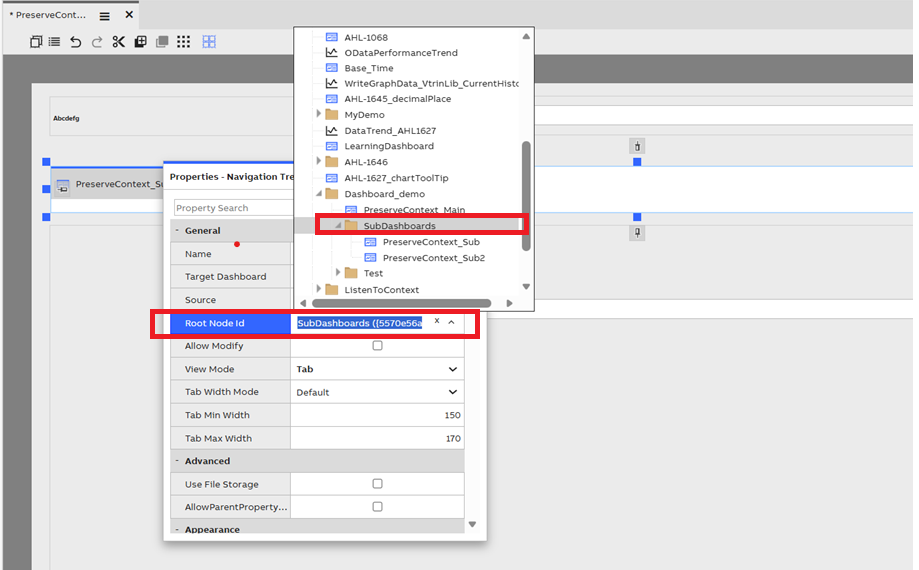
3. Configure the Root Node ID for the Sub Dashboard in the Navigation Tree Widget
- Open the Navigation Tree widget properties in the Main Dashboard.
- Search for the folder name and configure the Root Node ID with the SubDashboards folder path (for example, SubDashboards), as shown in the screenshot below.
-
Drag and drop Sub Dashboard 1 or Sub Dashboard 2 into the Main Dashboard below navigation tree.
-
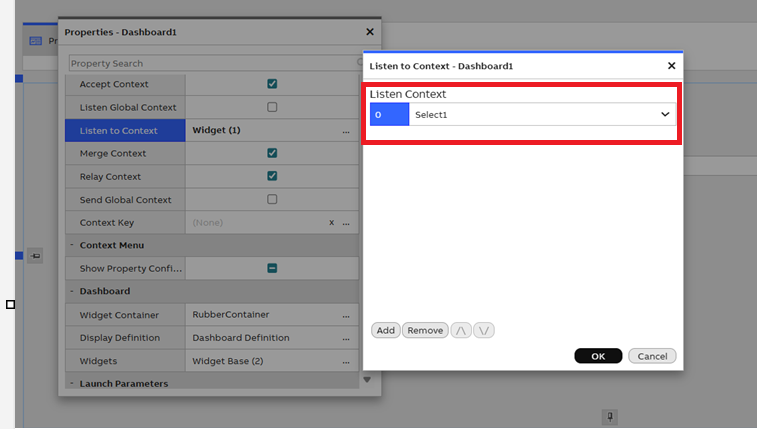
Open the sub dashboard widget properties in main dashboard drag and dropped and add a new Listen Context and select Label widget as shown in the below screenshot, and apply changes.
-
In the Navigation Tree widget select the view Mode as 'Tab' to see the Tab view as show in the below screenshot.

-
Enable Preserve For Target checkbox in Navigation Tree as show in the below screenshot and save the changes.
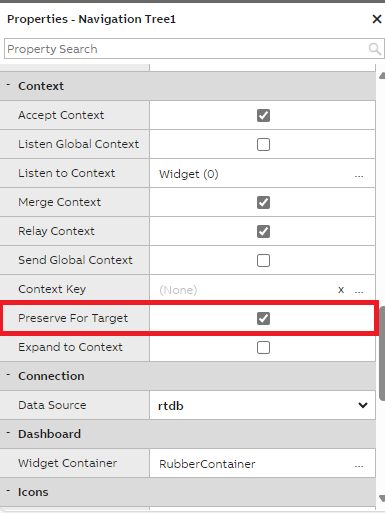
-
Now select a variable in the Select Widget dropdown from Main Dashboard and check if the select widget value in Sub Dashboard is changed.
-
Also, click on PreserveContext_Sub tab and check if the select widget value in PreserveContext_Sub (Sub Dashboard 1) is matching with the Select widget dropdown value in the Main Dashboard is persisted.
-
At end of this workflow when user switch between the tabs then context should be preserved and the Label widget value should persist.
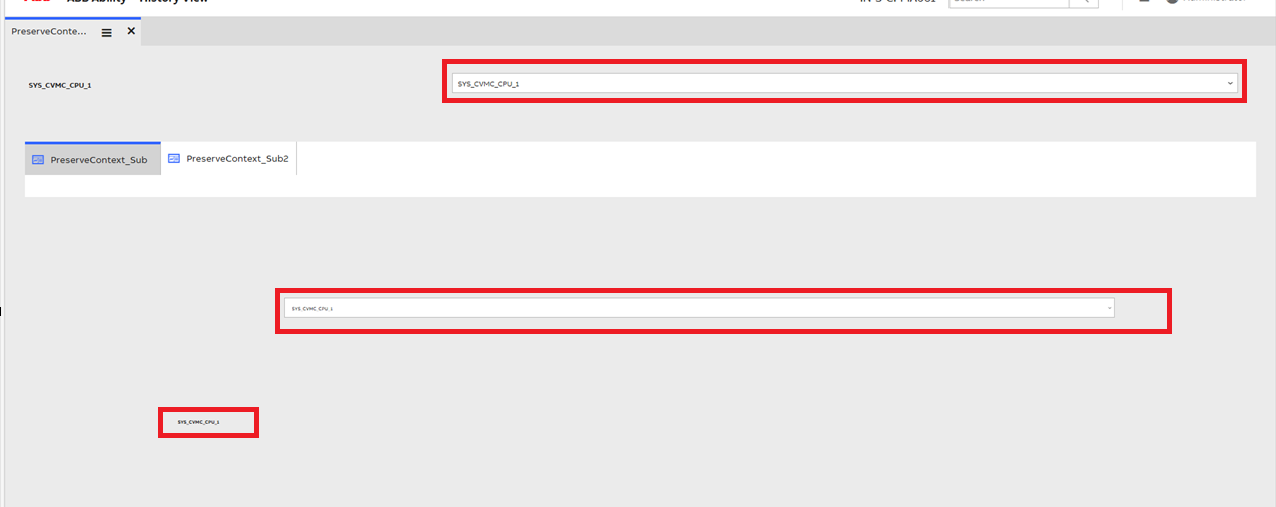
Updated 6 months ago