

Setting a write permission for a single instance
This how-to guide uses the equipment types from Example equipment model.
Initially, History is configured so that everyone can see everything but only users in RTDB-admin group are able to write or modify anything.
-
Open Engineering UI. Locally on the server the Engineering UI can be accessed by navigating on a web browser to
https\://localhost/history. -
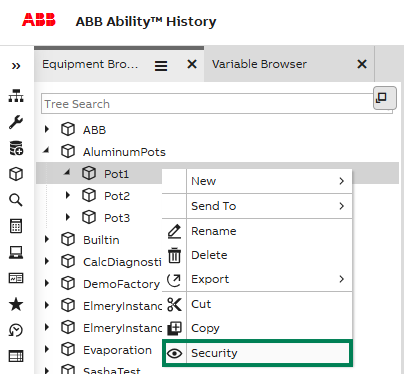
To see the ACL permissions for an object, right-click the object on the UI and select Security. Easiest way to open a data browser is from the cube symbol by the user settings as shown in the image below.

-
After opening the below menu by right-clicking an instance, we choose security and this opens the following permission settings.
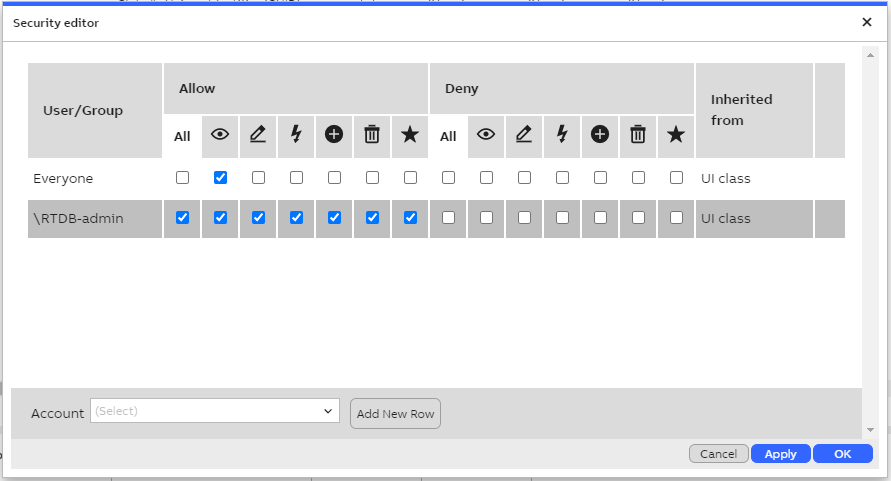
- We want to give the user
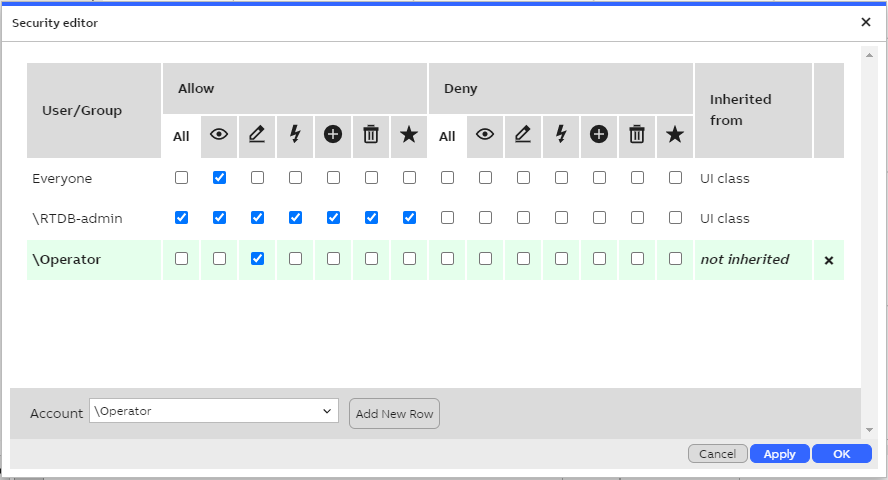
Operatoraccess to write to this pump instance's properties. You must be logged in with an admin user to modify ACL entries.- In the Account field at the bottom, Type
\Operator. - Then click Add New Row.
- On the new ACL row, toggle on the checkbox to allow writing. Pen icon indicates writing access.
- Press OK.
- In the Account field at the bottom, Type
- Now
Operatoruser is able to write to this pump instance's properties, but has no access to other instances we don't want.
Updated about 2 months ago
Did this page help you?