

Vtrin OPCUA AutoConfig for 800xA Object Model & Data
Vtrin OPC UA Client can automatically import variables from OPC UA servers and generate the corresponding equipment model in ABB Ability™ History. This document provides a step-by-step procedure for configuring the Vtrin OPC UA Client's autoconfig feature to automatically import variables from the 800xA OPC UA Server, generate the corresponding equipment model in ABB Ability™ History, and collect process data on ABB Ability™ History deployed on Edgenius OS.
Prerequisite
UaServer Host Entry to Pod
Host entry of the 800xaServer needs to be updated to the ABB Ability™ History pods running in Edgenius OS. The entries can be made using the setting option in Edge Management Portal in following format .
Important: Only append the host details and don't delete the existing entriesThe entry
idp.hostnameis used for the Keycloak server hostname.
This is configured during deployment, which shouldn't be altered/removed at any point.
There may also be additional entries apart from keycloak entry, Only append the UaServer host entry in specified format at the end.
Note: Use correct hostname of 800xaUaServerUse exact hostname of 800xaUaServer to avoid complexity in URL and certificate transfer
In this example:

idp.<hostname> resolves the Keycloak server hostname.
(This is configured during installation, which shouldn't be altered/removed at any point)

Avoid creating multiple entries for same ip. Instead provide the dns names for an ip as array value

Entry "800xaUaServer" is an example to add 800xaUaServer host details.
Use exact hostname of 800xaUaServer to avoid complexity in url and certificate transfer
---------------------------------------------------------------------------------------------

{
  "10.0.0.1": [
    "idp.<hostname>",
    "<hostname>"
  ],
 "192.168.xxx.xxx": ["800xaUaServer"
  ]
}
Configuration with details of Object structure from 800xAUaServer
-
Create a config file - Inside the History POD, create a config file with the name
autoconfig.txtin the path/var/lib/rtdbdata/OpcIniFiles.sudo oc exec -it abb-ability-history-0 -n cpmplus -- touch /var/lib/rtdbdata/OpcIniFiles/autoconfig.txt-
Edit the autoconfig.txt and provide the required details of the 800xAserver Object structure from which the model needs to be created and start data subscription in the POD.
sudo oc exec -it abb-ability-history-0 -n cpmplus -- nano /var/lib/rtdbdata/OpcIniFiles/autoconfig.txt
#This command will open the file in editor mode.
Paste the content below and modify it according to the user requirement
equipmentsettings=
[{
	rootname="Autoconfig";
	preservenames=true;
	typeprefix="800xASystem";
	typedefinition="ns=2;g=05278d7f-6113-41be-b675-84a335048267";
	startnodeid="ns=2;g=72bdfa41-edc8-4b83-ac4c-5bda4393467b";
}];
equipmentsettings= [{ rootname="Autoconfig"; preservenames=true; typeprefix="800xASystem"; typedefinition="ns=2;g=6c221745-dca6-4115-8d0c-0dc44149c9c4"; startnodeid="ns=2;g=72bdfa41-edc8-4b83-ac4c-5bda4393467b"; }, { rootname="Autoconfig"; preservenames=true; typeprefix="800xASystem"; typedefinition="ns=2;g=05278d7f-6113-41be-b675-84a335048267"; startnodeid="ns=2;g=72bdfa41-edc8-4b83-ac4c-5bda4393467b"; }];where,
rootname is the name of the root object for equipment instances
preservenames Uses names as is from the OPC UA Server without node IDs. Configured prefixes are still applied. If prefixes are omitted, this setting may cause conflicts and potential issues on the target database
typeprefix is the prefix to add to every equipment type
typedefinition - ID taken from the object type which needs to be created as equipment type
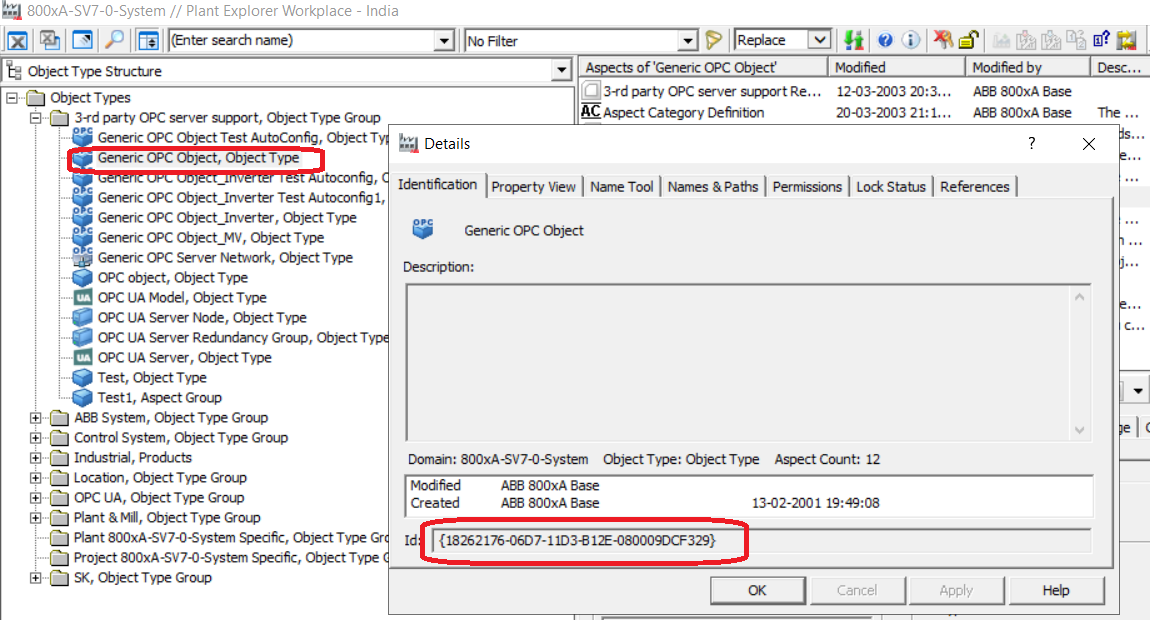
startnodeid is the Node ID taken from Control Structure to start browsing for variables to generate equipment instance.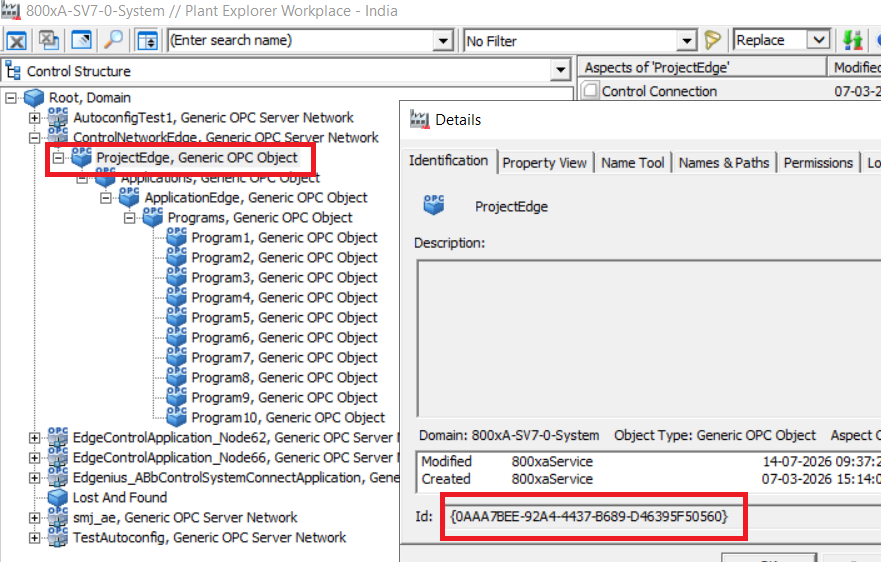
There are further more options that can be configured, which are documented in Settings
-
-
Add Server credentials to the Pods Vault entry using the command
sudo oc exec -it abb-ability-history-0 -n cpmplus -- runcpm Vtrin-NetServer --username <username> --password <password> --addcredentials <800xauaservername>where
<username> is the user name of the uaserver
<password> is the password of the uaserver user
<800xauaservername> is the name of the ua server -
Simple Config Entries - Launch ABB Ability™ History Engineerin UI/ View interface
Search for simpleconfig and open the item listed under dashboard
Click on edit and all the following entries, Note that in the last row of below table you need to give the name used to create credentials in Step 3 and the Servername added as per the host file in prerequisites section
Section Key Value VtrinOPCUAClient autoconfig:800xauaserver file=/var/lib/rtdbdata/OpcIniFiles/autoconfig.txt VtrinOPCUAClient autoconfigforcerun:800xauaserver false VtrinOPCUAClient autoconfigrunsettings:800xauaserver interval=00:30:00;enabled=true;runonmodelchange=true;runoninterval=false; VtrinOPCUAClient UAServer:800xauaserver securitypolicy=Aes128Sha256RsaOaep;securitymode=signandencrypt;authentication=username;username=VTRIN/<800xauaservername>;url=opc.tcp://<800xauaserverName>:44683/ABB/800xA/OPC/UA/Server -
Certificate Movement: Since certificate security policy is used, we need to move the Server certificate on the client side. Below steps are for moving server certificate from the rejected folder to the trusted folder in client
sudo oc exec -it abb-ability-history-0 -n cpmplus -- mv /home/cpmplus/.config/ABB/VtrinOPCUAClient/PKI/Rejected/certs/* /home/cpmplus/.config/ABB/VtrinOPCUAClient/PKI/Trusted/certsSimilarly, move the client certificate on the server to its trusted location. This path may change based on the vendor, which can be referred in their corresponding documents
Since this document focuses mainly on 800xAUaServer the certificate path will be mostly the location mentioned below (We strongly recommend verifying the same with the 800xA document)C:\ProgramData\ABB Control Systems\Core Functionalities\800xA Base\OpcUaServer\pki\rejected\certsand move to Trusted folderC:\ProgramData\ABB Control Systems\Core Functionalities\800xA Base\OpcUaServer\pki\trusted\certs -
In Simple Config, set autoconfigforcerun:800xauaserver to True to trigger the automatic creation of the Equipment model.
-
On following the above steps the model will be created in ABB Ability™ History as per the structure and details provided in autoconfig.txt file. If it's not created, check the above steps carefully once and try to restart the VtrinOpcUaClient service.
-
Check the VtrinOpcUaClient log file in case of any issues. Log file can be found under /var/lib/rtdbdata/Diag folder.
-
On successful creation, the corresponding entries will be created in Equipment Model, Data Access Source and Data Access Real Time classes
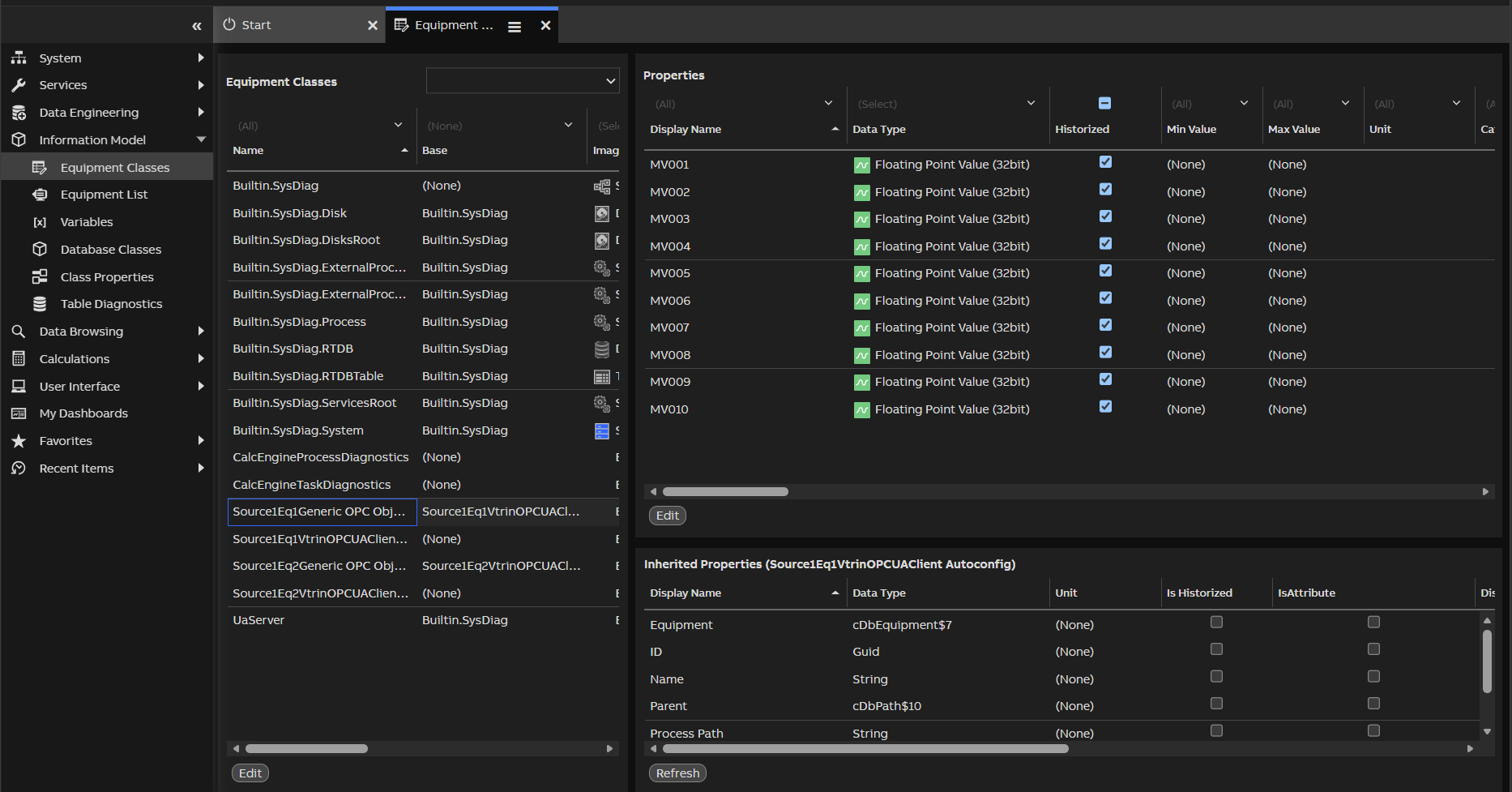
Equipment Classes
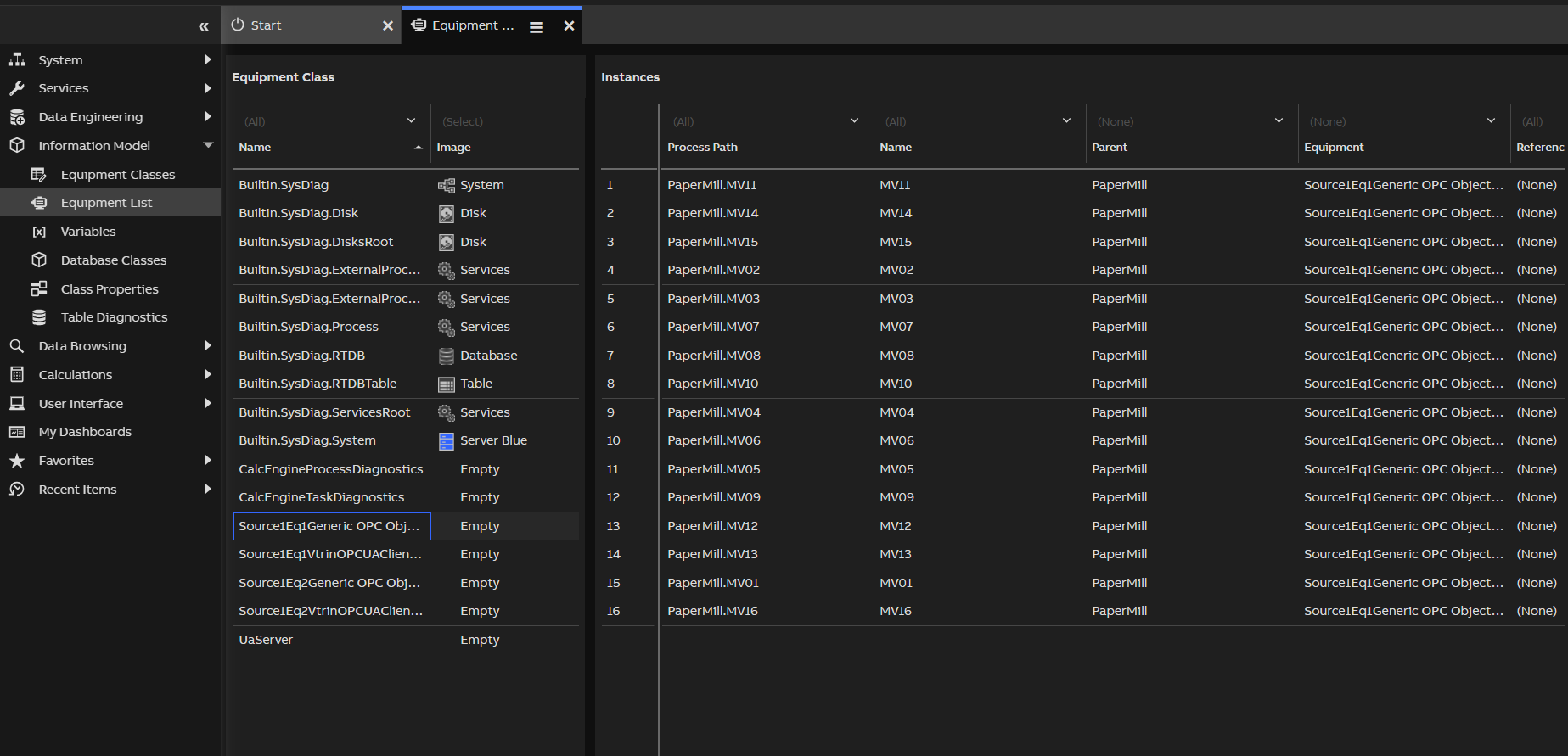
Equipment List
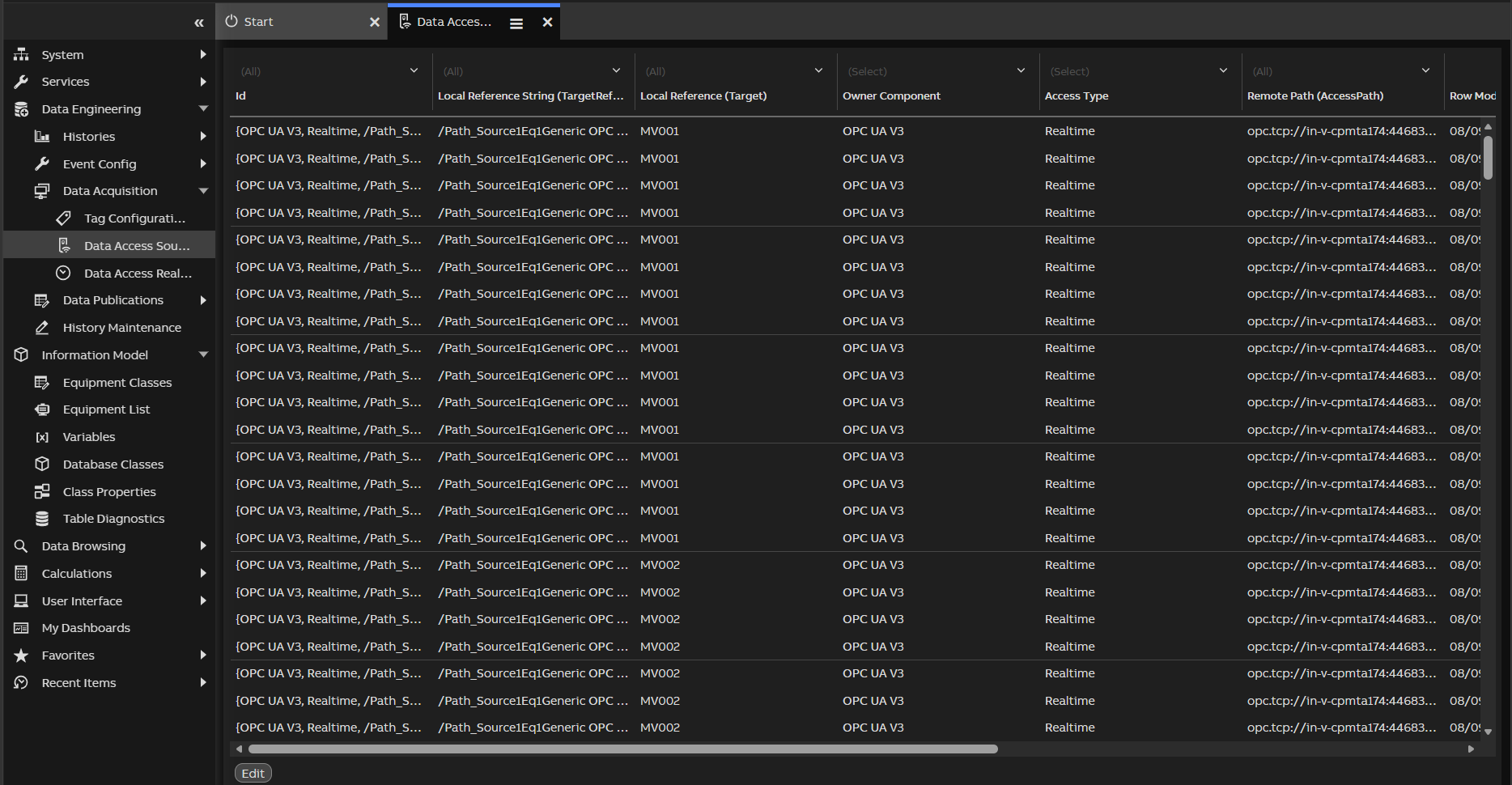
Data Access Sources
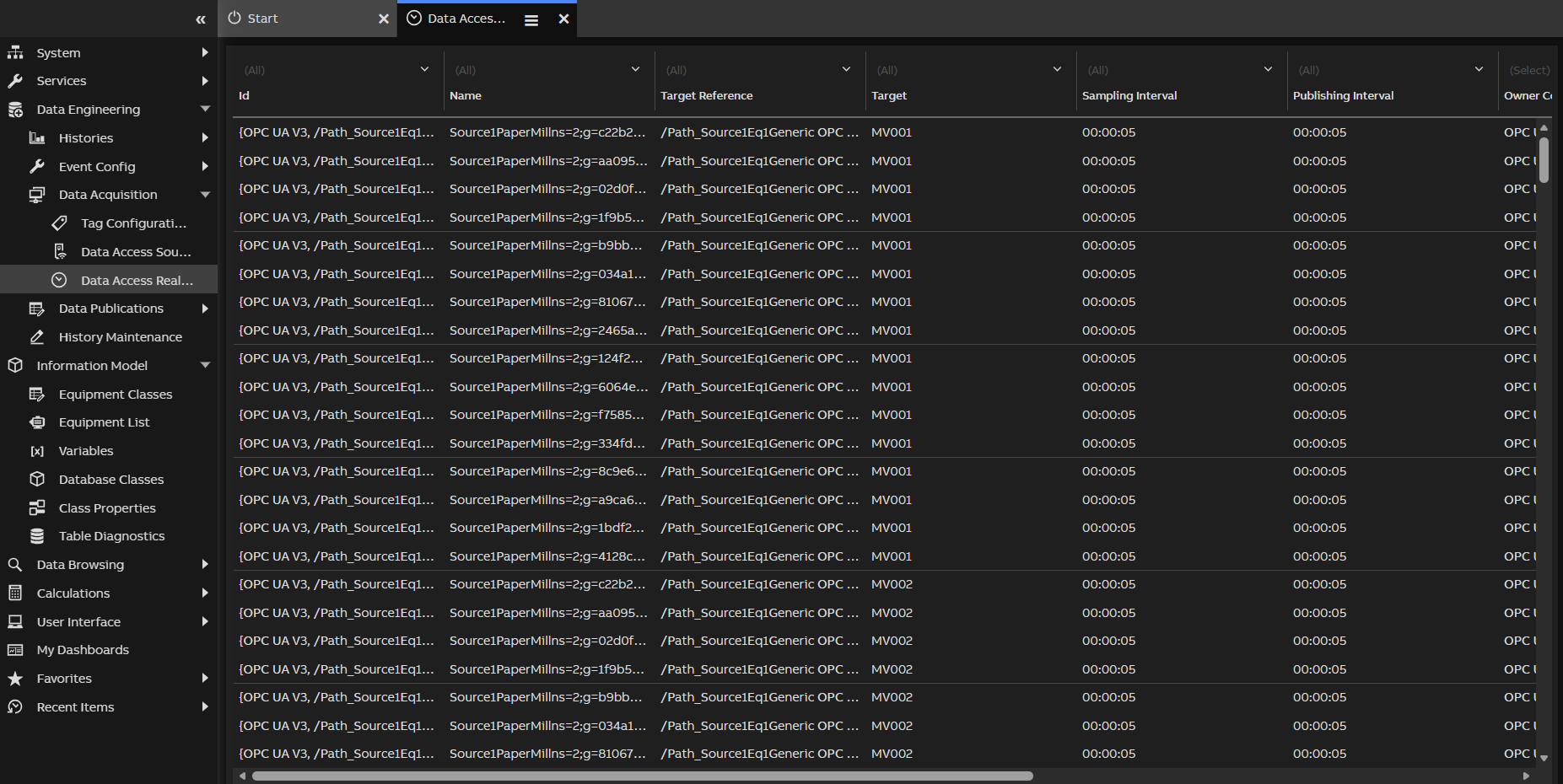
Data Access Real Time
Updated about 1 month ago