

Tabs on dashboard
This tutorial will show how to use our Navigation Tree Widget as tabs in dashboard
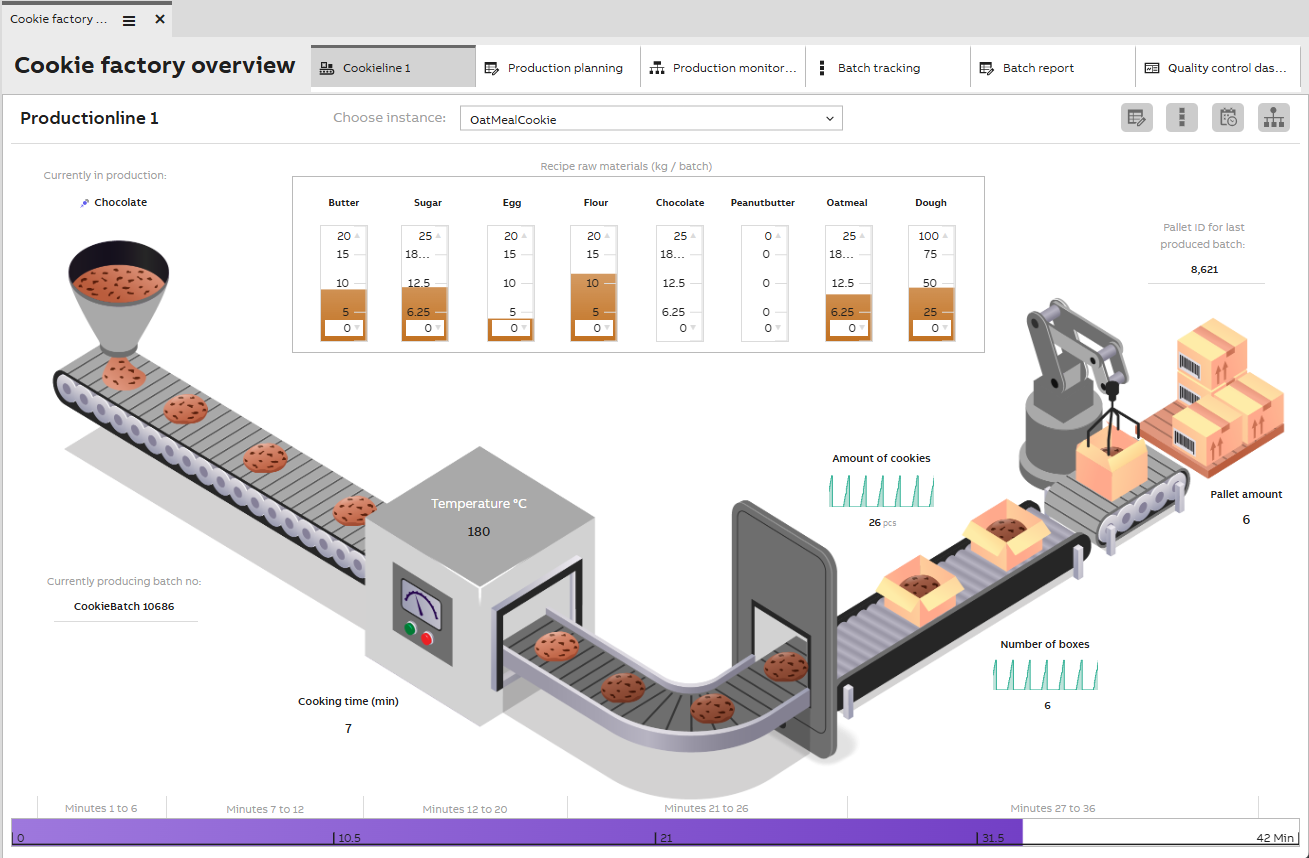
Our example has one main dashboard ("Cookie factory overview") and sub dashboard that has been added with the tab feature. Moving between tabs open the dasboards as they have been created.
Step 1: Creating the dashboards
First we will create the folder structure and dashboards we need. In our example it looks as shown in the image below.
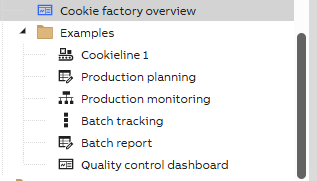
The main dashboard where we add the tabs need to be in different folder than the dashboards that will be tabs. The tabs are named according to the dashboard names, so these should be chosen carefully. These can be renamed later as well.
Step 2: Configurations on main dashboard
On our main dashboard we have the following:
- Label widget: This is our Cookie factory overview headline.
- Navigation Tree widget: This is for our tabs.
- Sub dashboard that we want to be shown when we open the main dashboard. This then shows as the active tab on our main dashboard. This is chosen from the sub dashboard folder by dragging and dropping. In our example we have added our CookieLine1 dashboard there.
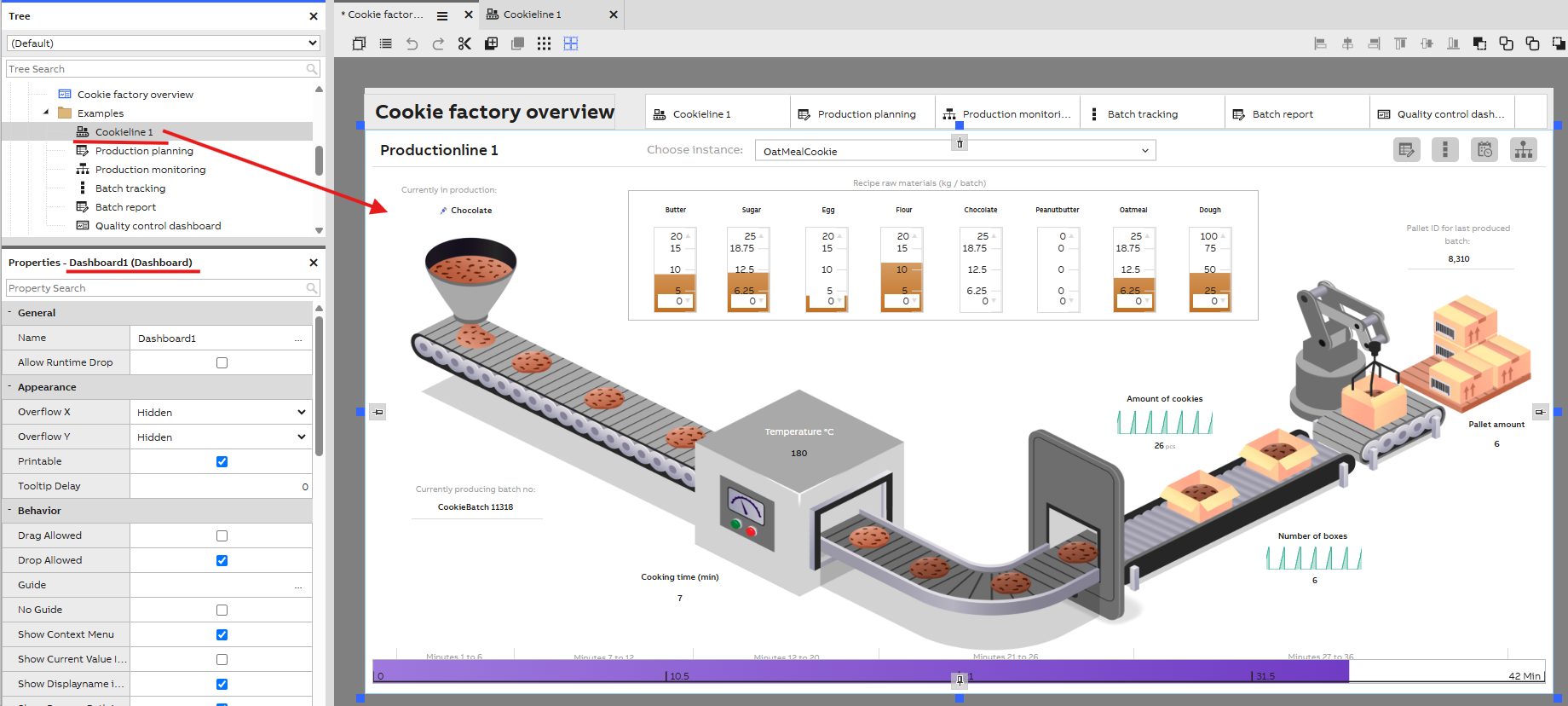
One sub dashboard is placed to our main dashboard.
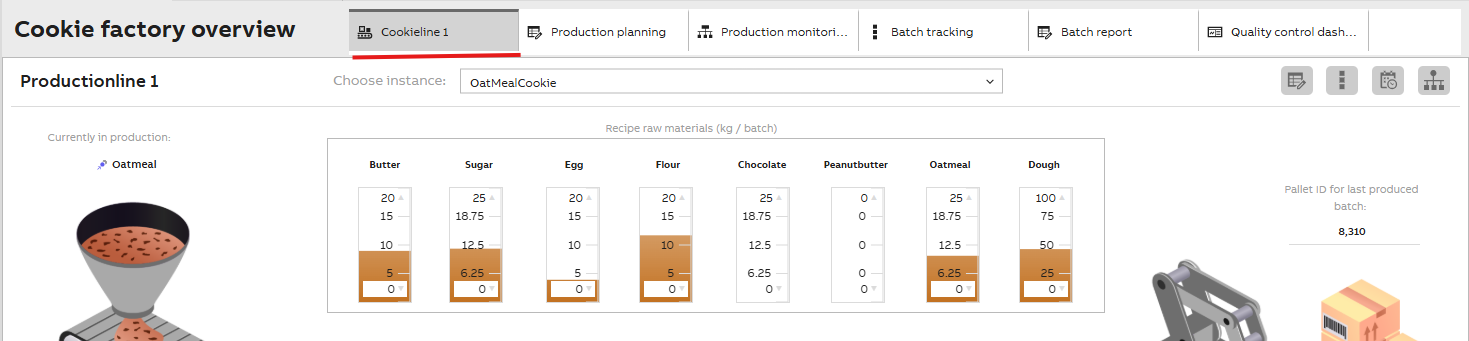
The added sub dashboard is then the first tab to be active when main dashboard is opened
Navigation Tree widget settings
After adding the Navigation tree widget and our sub dashboard to our main dashboard, we need to configure a few property settings for our tabs to start working. In the widgets property settings we at least set the following:
- Target dashboard: This is the sub dashboard we just added. The dropdown menu will show only this one option. We select that.
- Root Node Id: This is now the folder of our sub dashboard. From the dropdown menu we can simply navigate to the folder we wish and choose it.
- View Mode: Lastly, to make the tabs appear as designed, we need to change this from Node to Tab.
Further recommended settings depending on dashboard size and purpose:
- Tab width mode
- Tab Min Width
- Tab Max Width
- Show Icons (This is selected by default, but if we wish to not show the icons on the tabs, we can unselect this setting)
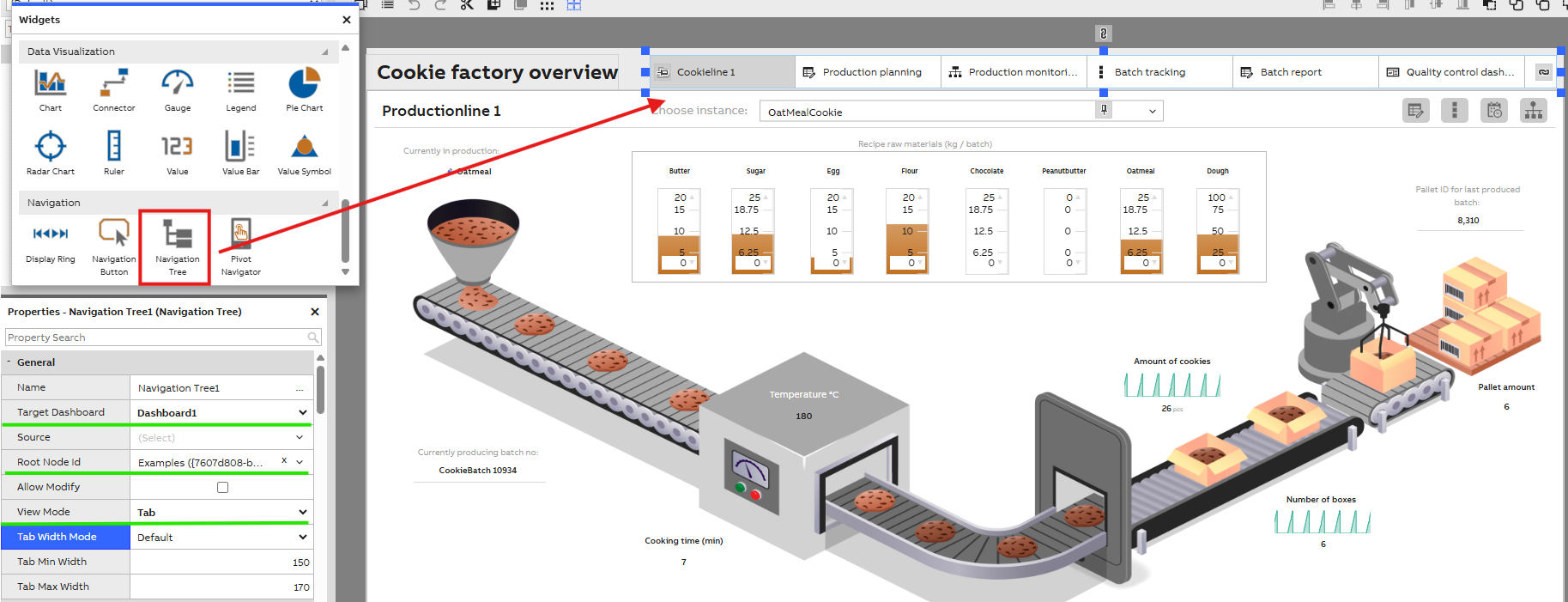
Mandatory Navigation Tree widget settings
Step 3: Save and test
After configuring and saving the settings above we can exit the edit mode and see if the tabs appear and work as should. The tab dashboard should be identical to the actual sub dashboards in the sub dashboard folder.
Updated about 16 hours ago