

Class Instance Set Widget Usecases
A Class Instance Set Widget is a user interface component that displays, manages, and interacts with a collection (set) of instances belonging to a specific class or object type
Features
-
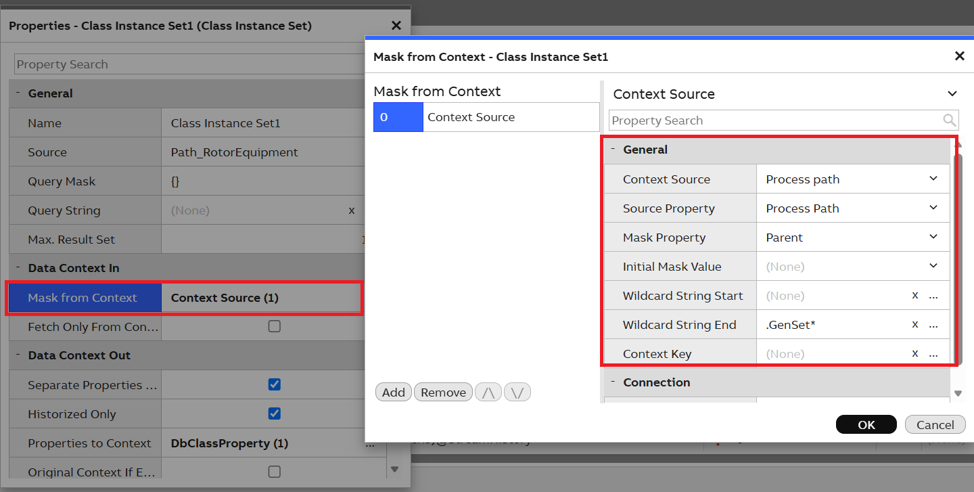
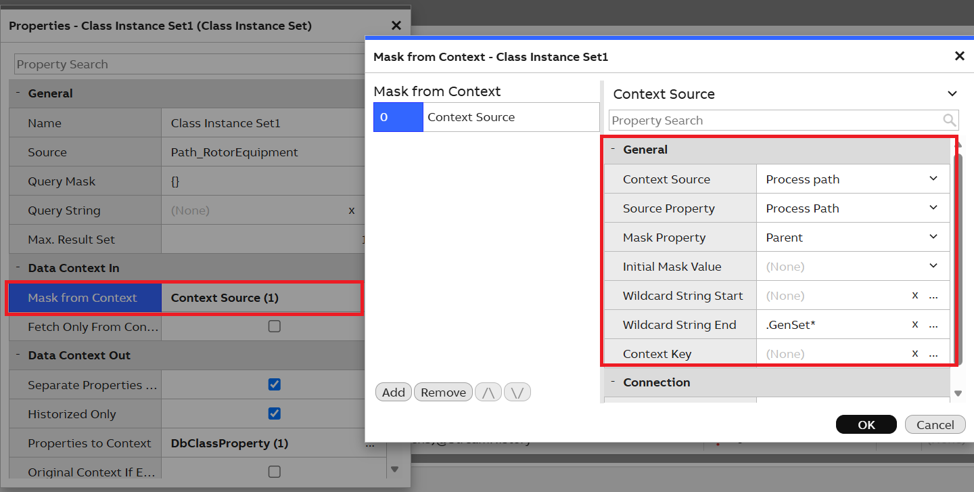
Mask from Context: Using this feature, users can filter the Incoming Context with different filter parameters as shown in the screenshot below
-
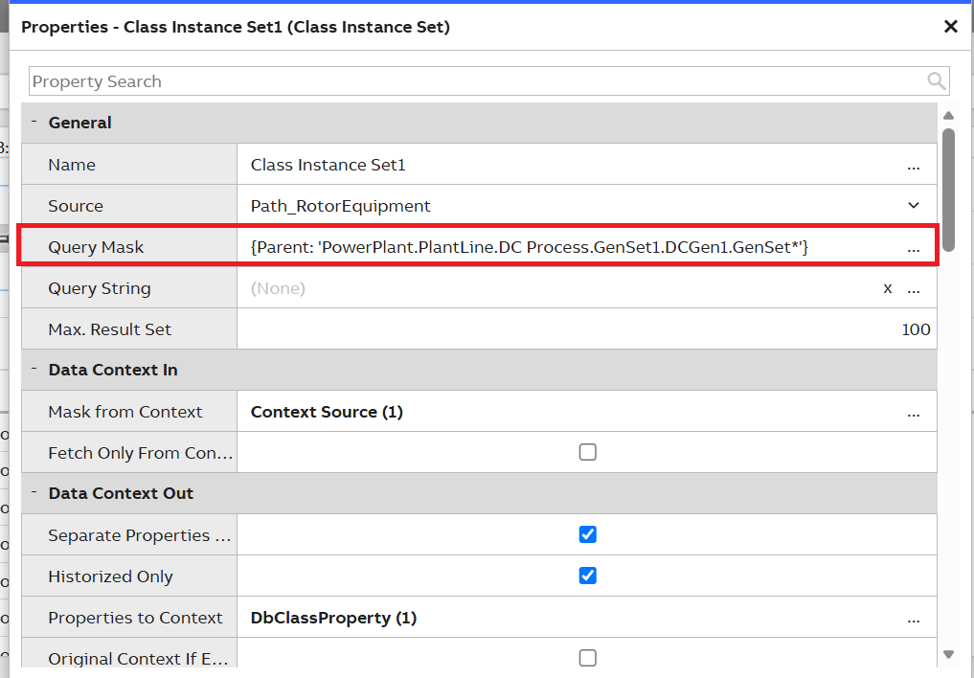
Query Mask Update: After applying the Mask from Context, users can see the Query Mask gets updated as shown in the screenshot below.
-
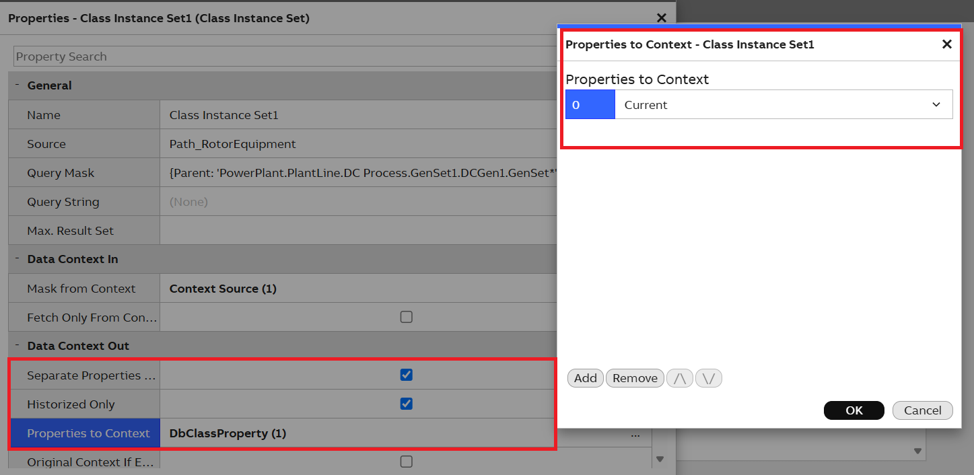
Separate Properties to Context: This feature is part of the Data Context Out section in the widget properties. It is a select type property that, when enabled, activates a new property called 'Historized', which is a checkbox option.
-
Enabling this option filters the results to display only Historized Equipment properties. Additionally, the Properties to Context property becomes available with a dialog box where users can select the required Equipment Properties from the Source Class configured in this widget. All selected properties are bundled into a context array and sent to the receiving widget.
Use Cases
Use Case 1 : DC Generator Current Monitoring Across Multiple GenSet.
Problem Statement:
The customer wants to display the Current trend for all DCGen (RotorGenerator) equipment instances available under a selected DC Process. Based on the equipment hierarchy shown below, manually configuring each DCGen instance for trending would be time-consuming and difficult to maintain. This requirement can be achieved using the Class Instance Set Widget, which automatically discovers all DCGen instances under the selected Process and passes their Current properties to the Chart Widget for visualization.
Business Objective:
Operators and engineers require a consolidated view of DC Generator (DCGen) performance across an entire DC Process without manually navigating through individual GenSets and DCGen instances. This feature enables users to analyze Current trends and compare electrical load across multiple GenSet from a single dashboard, providing improved visibility and reducing dashboard maintenance effort.
User Interaction Flow
-
PowerPlant
-
PlantLine
- AC Process
-
DC Process
-
GenSet1
- DCGen1
- DCGen2
- DCGen3
- DCMotor1
- DCMotor2
- DCMotor3
- DieselEngine1
- DieselEngine2
-
GenSet2
- DCGen1
- DCGen2
- DCGen3
- DCMotor1
- DCMotor2
- DCMotor3
- DieselEngine1
- DieselEngine2
-
GenSet3
- DCGen1
- DCGen2
- DCGen3
- DCMotor1
- DCMotor2
- DCMotor3
- DieselEngine1
- DieselEngine2
-
GenSet1
-
PlantLine
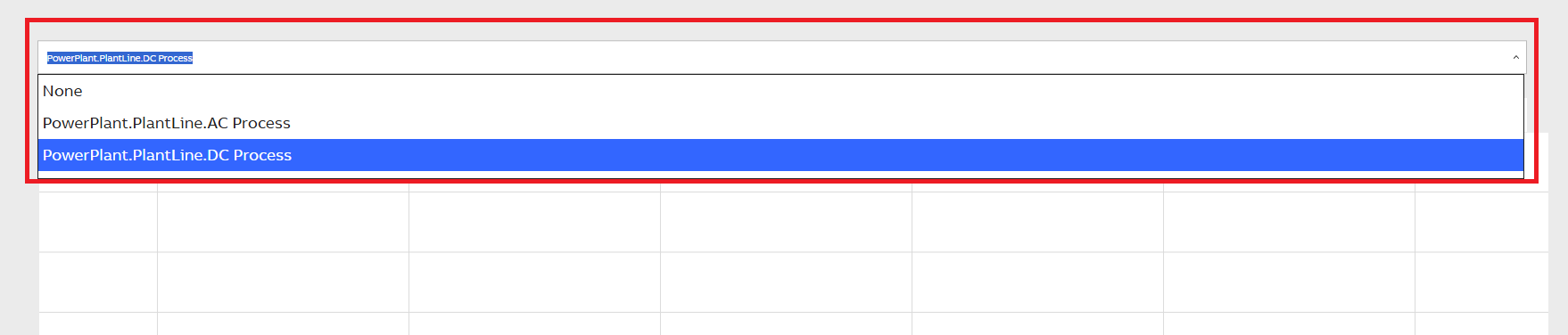
Step 1: Process Selection
A Select Widget is displayed on the dashboard containing all available Process instances from the equipment model.
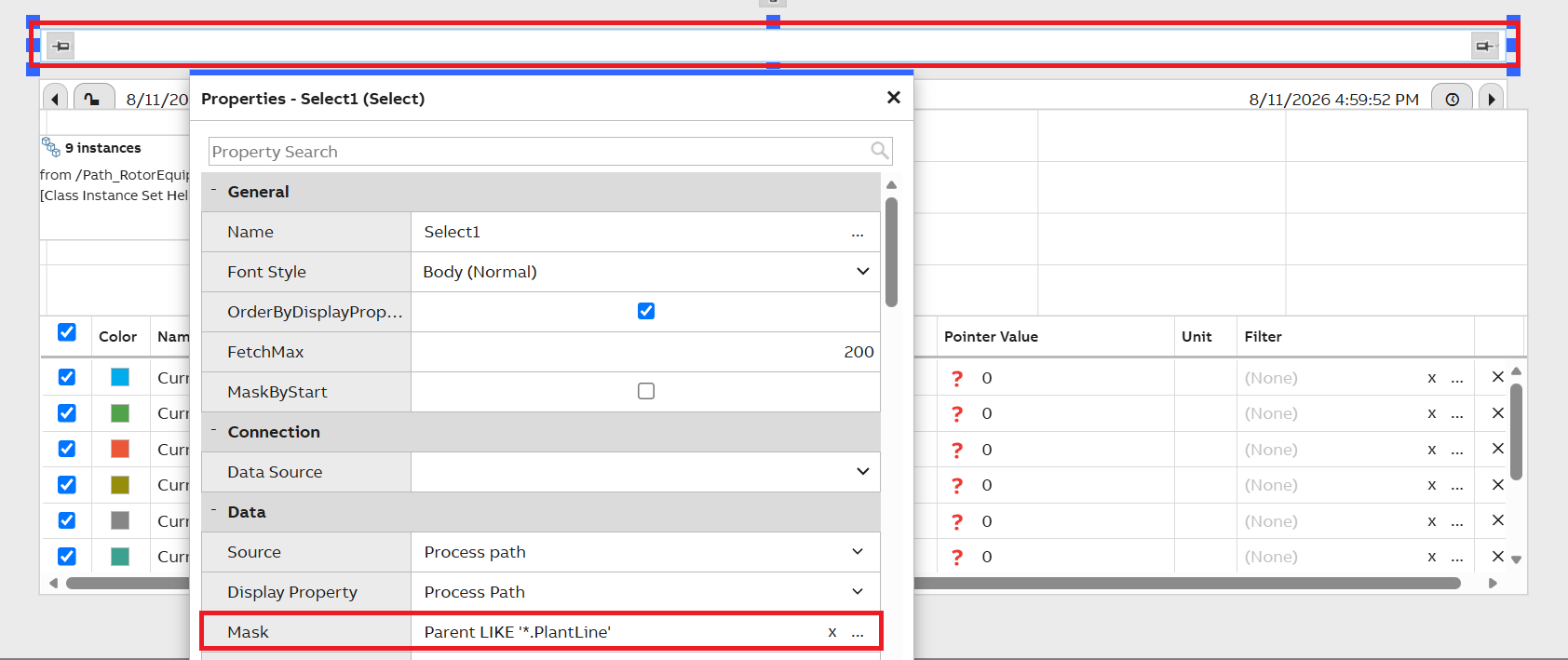
This can be achieved by adding a select widget to filter the Processes for a line and also apply a mask for it as show in screenshot below.
Set the Mask as : Parent LIKE '*.PlantLine', this will filter all the Processes available in PlantLine
Step 2: Equipment Discovery
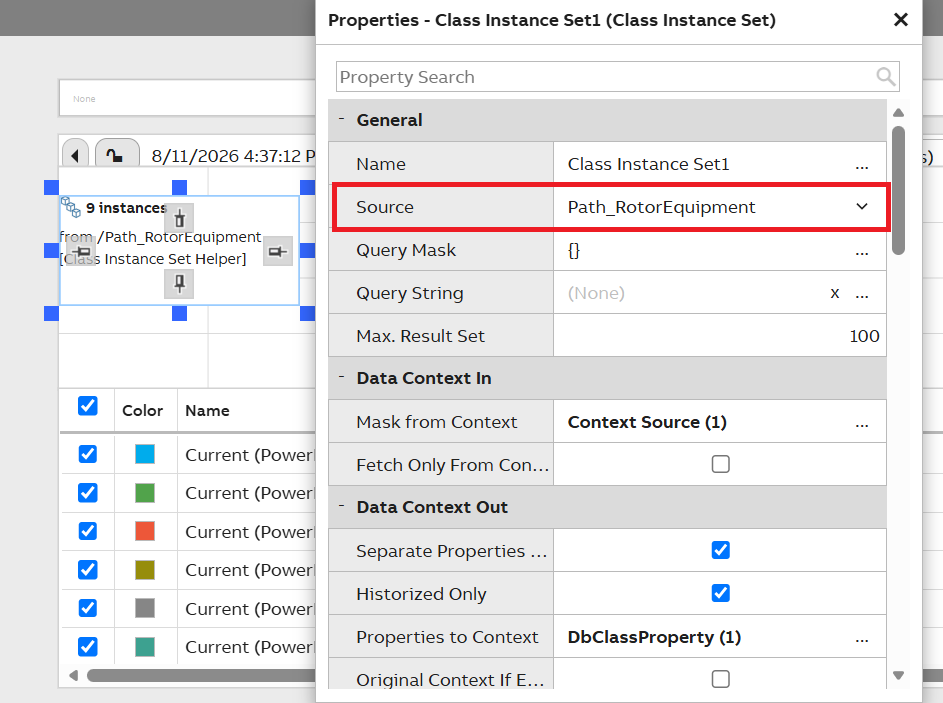
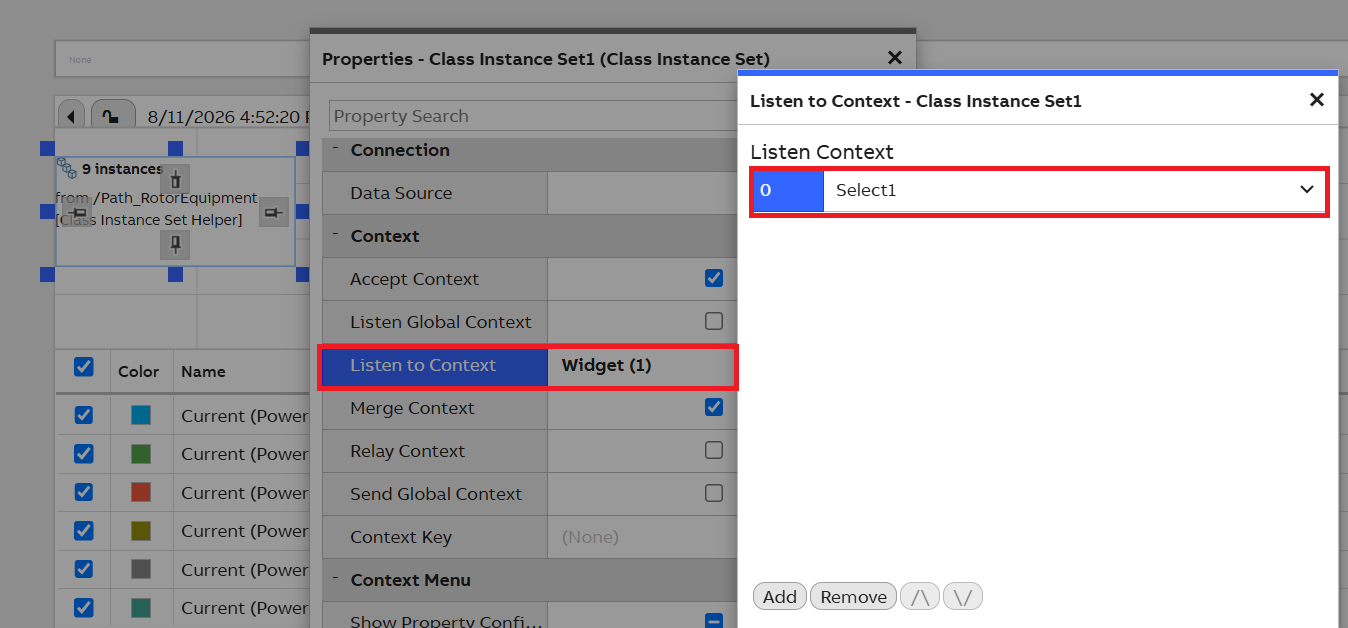
Add a Class Instance set with required Rotor Equipment type as source as shown in the screenshot below. And let the Class Instance Set widget listens to to the Select widget
In the Class Instance Set widget add a Data Context In to create Mask from Context as shown in the screenshot below.
In the Class Instance Set widget in Data Context Out section click on 'Separate Properties to Context' to filter out only the required properties, select Historized as True as you are going to shown them in Chart Widget. And also select the property as 'Current' (you can select additional properties too if needed) as shown in screenshot below.
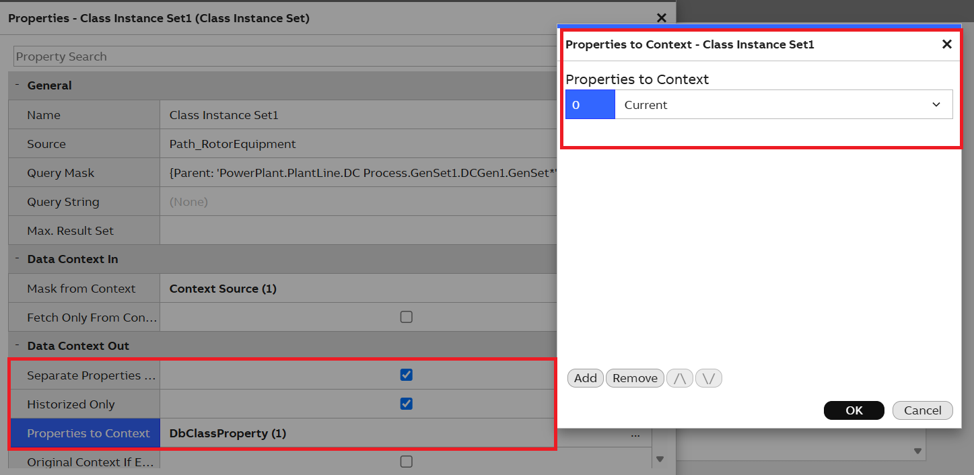
Upon process selection in the Select Widget, the system identifies the selected Process and traverses all child GenSet instances under the selected Process. Under each GenSet, the system discovers all child DCGen instances and system retrieves the Current equipment property.
Step 3: Chart Population
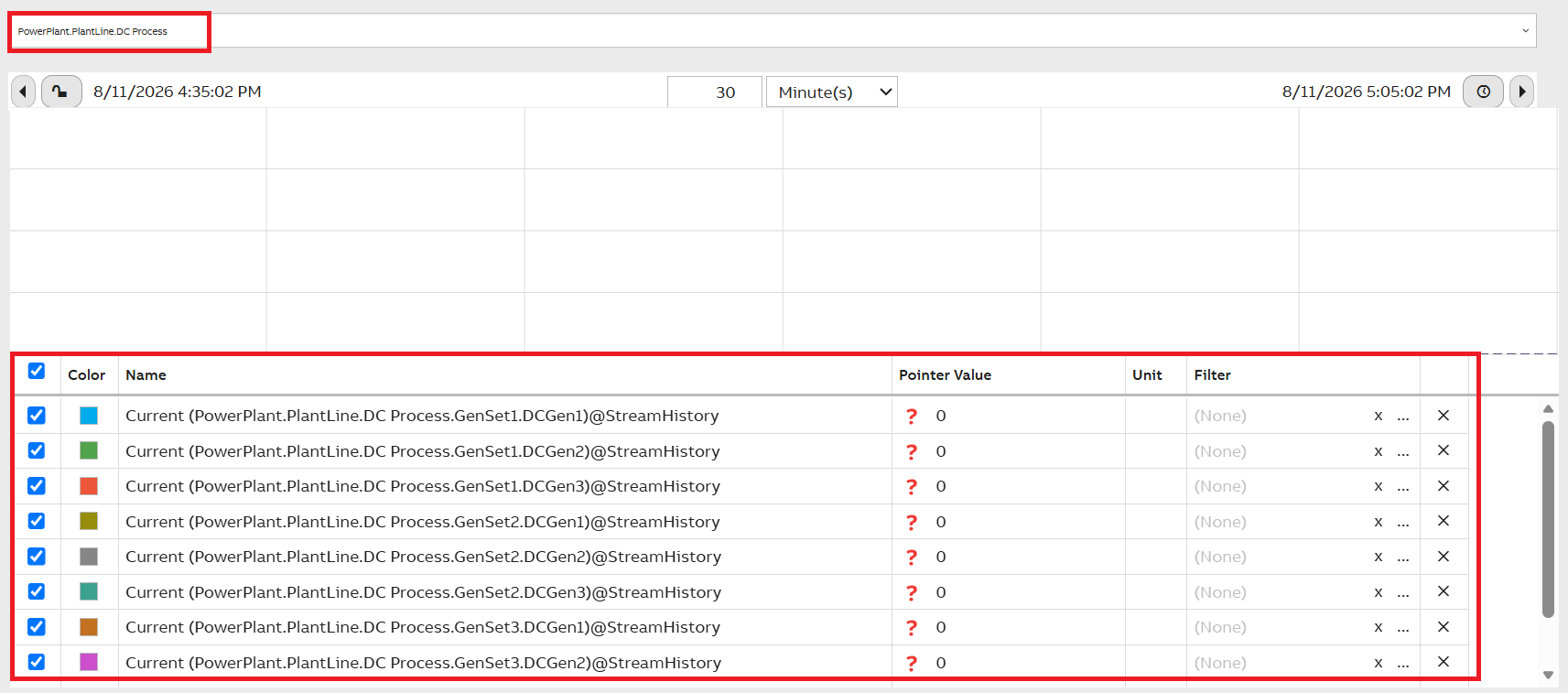
The Chart Widget is automatically populated with all Current trends discovered under the selected Process. Each Current appears as a separate trend/series item.
To achieve this, add a listen to context in Chart widget to Class Instance Set configured in the step 2
Updated 2 months ago