

Getting started with excel
This tutorial shows how to get started with OData in Excel
Structural data
Reading Equipment Models of structural data with Excel is simple with few steps:
- Open Excel
- Choose Data
- Choose Get data
- Choose from other sources
- Choose from OData feed
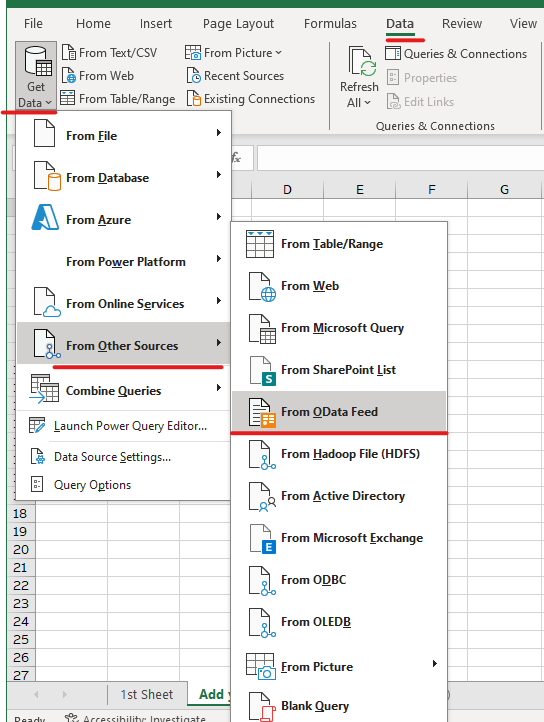
- Now on the pop-up window you need to give a URL . You need to know where you are connecting to and so this URL will include the connection string and /odata in the end.
- After providing the correct URL a new pop-up window opens showing a list of all the entities available through OData connection. We kindly remind that only classes with name or id are visible here.
- As you choose your Equipment Model and load the data, Excel opens the Equipment Model with properties to a new excel sheet.
- Now if you want to modify the query (to select a different class for example), move you mouse over the equipment model on the right side of the sheet and choose edit.
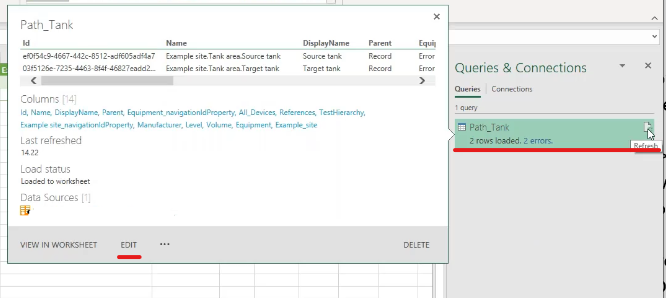
- Now you can choose a new Equipment Model from the navigation settings shown on the right side (wheel -symbol on the right side of navigation). However, if you want to make a query for multiple classes, you can easily copy+paste the first Equipment Model, then choose edit and select a new class under the navigation settings.
Please note:
- No server side filtering is possible with excel, but excel provides an Advanced Editor that uses Microsoft Power Query language, where queries may be specified. This is not completely OData compatible.
- With ABB Ability™ History, OData System query options allow us to use Vtrin filters on server side and combine those by using and and or specifications.
- Easy way to connect and try OData system query options would be with Chrome. We have gathered some examples under OData Example requests.
Time Series Data
Simple OData query in Excel
When fetching time series data and doing any OData functions in Excel, we use the advanced editor that uses power query language.
- Search Excel for power query editor.
- Open Power Query Editor and create a new blank query.
- Now on the left you can see Queries list.
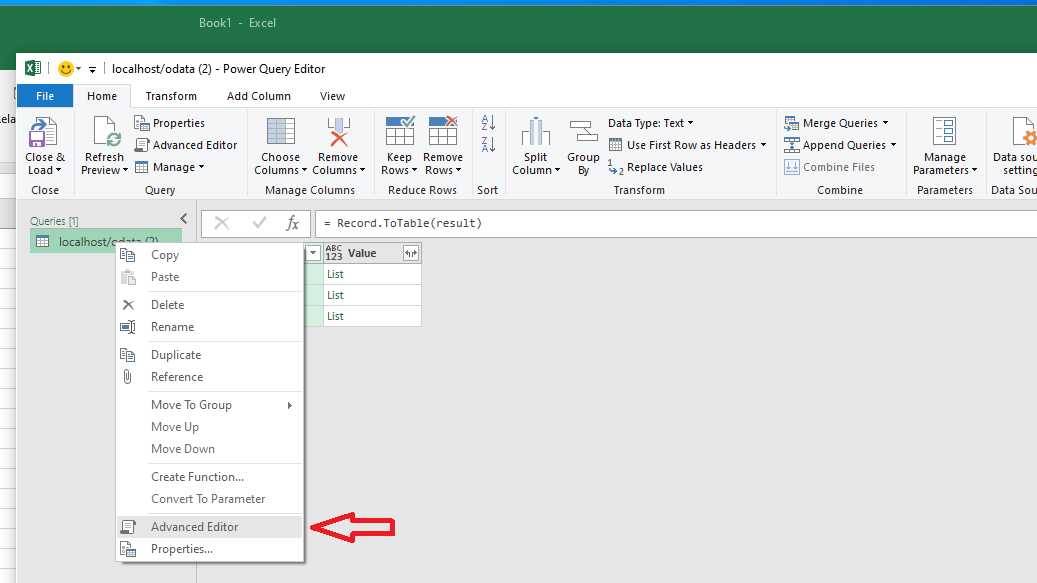
- Right click on top of the queries list and from opening menu choose advance editor.
The code below shows an example of a time series fetch query.
let
  classame = "EquipmentHistory",
  wherestring = "Path=%3F AND Property=%3F",
  whereargs ="['Example site.Tank area.Source tank', 'Level']",
  startx = "2020-09-02T13:20:00Z",
  endx = "2020-09-02T13:30:00Z",
  filter="MIN10sec|AVG1minutes",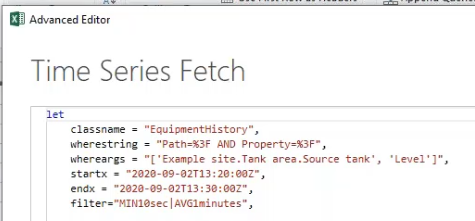
Parameters of fetch query:
- classname: When reading data from Equipment Model, the classname is EquipmentHistory. When reading data from variables, the classname is ProcessHistory.
- wherestring : Defines what we want to read. In our example query, this includes equipment model and property.
- whereargs: Here we give the Equipment Model path and property name. Remember to include square brackets when needed.
- startx and endx: Here we may define the start and end time of our query. Start time is optional, end time is required. When we give end time only, the data will be returned in reverse order starting from newest one.
- filter: This means the available Vtrin filters we have for our ABB Ability™ History. The available filters may be found under processing data - filters. If we leave this empty, we can fetch raw data without filtering.
Updated about 2 months ago
Did this page help you?