

Configure NLS Translations for Navigation Tree Item (Dashboard)
This tutorial explains how a user can configure National Language Support (NLS) translaitons for navigation tree items
-
Navigate to View and create a Dashboard which name should be translated (ex: Create a Dashboard and make a note of ID of the dashboard)
-
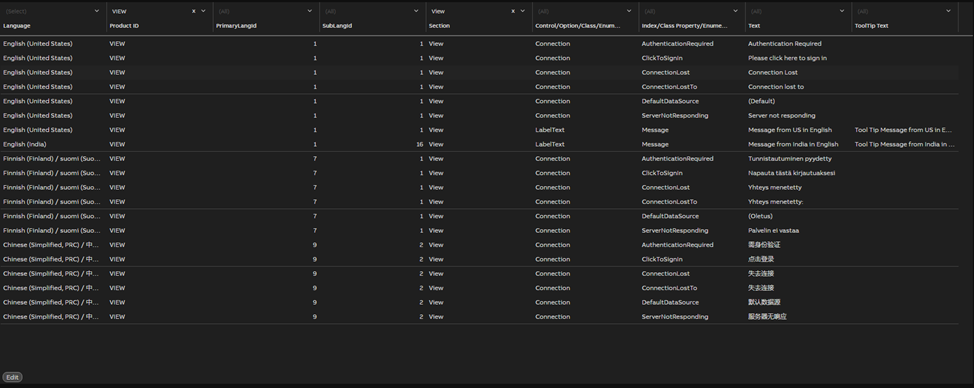
Navigate to Engineering UI and search for UIStrings/Language Strings so that all the UI Strings /Language Strings will be listed in the Data List with Edit option as shown in the screenshot below.
-
Create a new language string with below details:
-
Language Product ID Section Control/Option/Class/Enumeration Name Index/Class Property/Enumeration Text Telugu (India) / తెలుగు (భారత దేశం) View UITree 00000000-0000-0000-0000-000000000000 Dashboard Node ID Translated Dashboard Name Example with the same settings shown below with the language setting 'Telugu'.

-
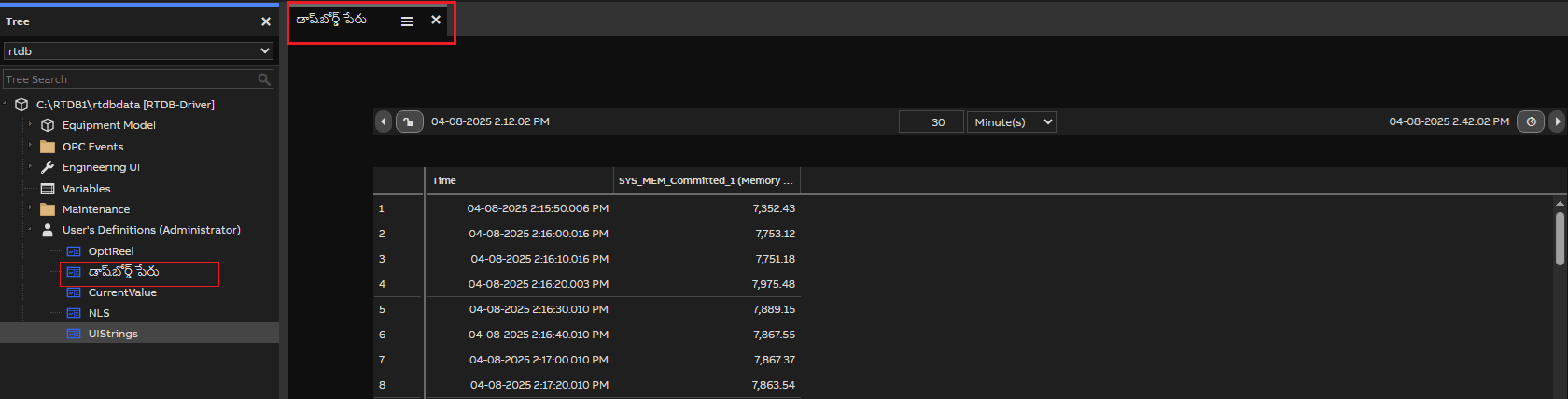
Now, open View application and select the Language select as 'Telugu' and observed that the Dashboard name is translated to Telugu as shown below. Similar approach can be used for other items in the navigation tree.
Updated 4 months ago