
Equipment Model Bulk Load Tool - Getting started
Introduction
This bulk load tool is created to increase users' productivity in Equipment Modeling. Equipment models can be created in any spreadsheet application, such as Excel, LibreOffice Calc, etc. Spreadsheet styles don't affect parsing processes, thus leaves users visually appealing works in their favorite application. Currently, xlsx file format is supported.
There are two ways of parsing the spreadsheet:
- Command-line tool: ExcelPopulateEquipment.exe. Using the command-line tool is convenient in automation, but requires that the file we want to parse is not locked.
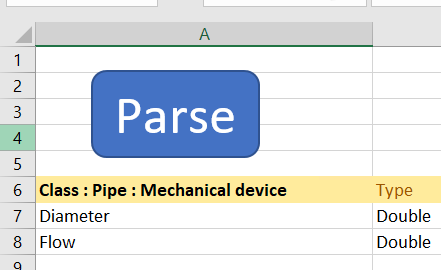
- A parse button in Excel application.
When modeling is ready, then parsing and committing the models to RTDB is easier.
Modeling
The modeling format is simple as everything is tables. There are two kinds of tables:
- Model table: The model table describes the model's properties and its relationship with other models.
- Instance table: Instance table is a list of instances of a model.

To distinguish between model table and instance table, three keywords are reserved: Class, AbstractClass and Instance. If a header has Class or AbstractClass that means the table is model. If the header has Instance it means it is an instance table. AbstractClass is a Class with Abstract attribute set to true. Abstract is to indicate that the instances should not be created from this generic model, but only from those inheriting it.
Model table & Instance table with simple example
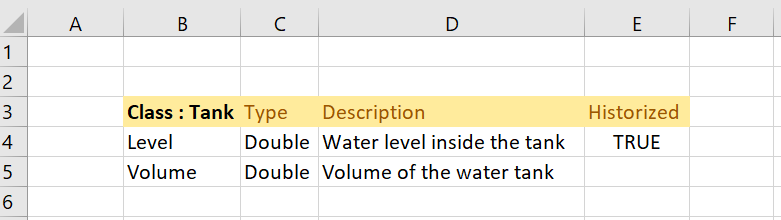
Below we have two tables of a simple model and its instance. You may find the simple model code here.
For this model we have only defined a few properties to keep our example simple. We defined the following:
- Properties (tank and level)
- Data Type
- Descriptions
- Definition, if values are historized or not.
| Class : Tank | Type | Description | Historized |
|---|---|---|---|
| Level | Double | Water level inside the tank | True |
| Volume | Double | Volume of the water tank |
Example Model table
Example Instance table

Parsing Model and Instance Table
When the model is ready, it can be parsed:
"C:\Program Files\ABB Oy\RTDB\Bin\ExcelPopulateEquipment\ExcelPopulateEquipment.exe" <model and instance table excel file>Parsing the above model generates following JSON file:
{
  "ClassData": [
    {
      "Class": "Equipment",
      "Instances": [
        {
          "Id": "e712132b-af53-4929-9d0e-e9ed44bef27a",
          "Name": "Tank",
          "ClassName": "Path_Tank"
        }
      ]
    },
    {
      "Class": "EquipmentPropertyInfo",
      "Instances": [
        {
          "Id": "9d0f0e71-c2e5-4a4c-aaea-4b116598b627",
          "DisplayName": "Level",
          "Equipment": "e712132b-af53-4929-9d0e-e9ed44bef27a",
          "Type": 14,
          "Description": "Water level inside the tank",
          "Historized": true
        },
        {
          "Id": "9867d720-e0f1-4c59-ad60-3873ac169f63",
          "DisplayName": "Volume",
          "Equipment": "e712132b-af53-4929-9d0e-e9ed44bef27a",
          "Type": 14,
          "Description": "Volume of the water tank"
        }
      ]
    }
  ]
}
According to the JSON file, models are listed as instances under the class of Equipment, and their properties are also listed as instances under EquipmentPropertyInfo. The JSON above can be committed to a database remotely:
"C:\Program Files\ABB Oy\RTDB\Bin\VtrinCmd.exe" -c wss://<my server>/history -i <my model.json> -u nmea\<username> -ak
# -c connection string.
# -i import JSON data from files.
# -u user name for the connection.
# -ak Accept new server keys.
or locally:
"C:\Program Files\ABB Oy\RTDB\Bin\VtrinCmd.exe" -c <db location> -i <my model.json> -v
# -c connection string.
# -i import JSON data from files.
# -v verbose.
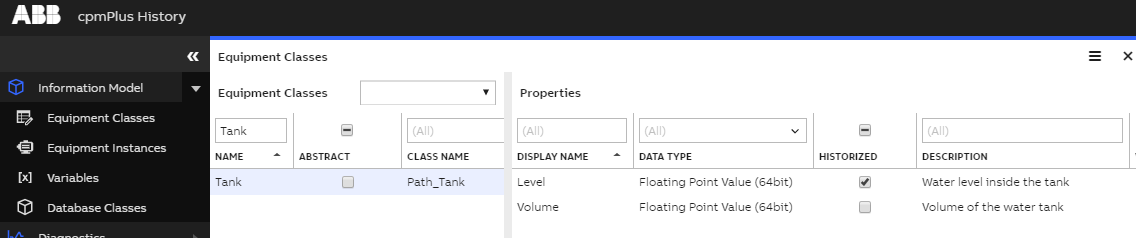
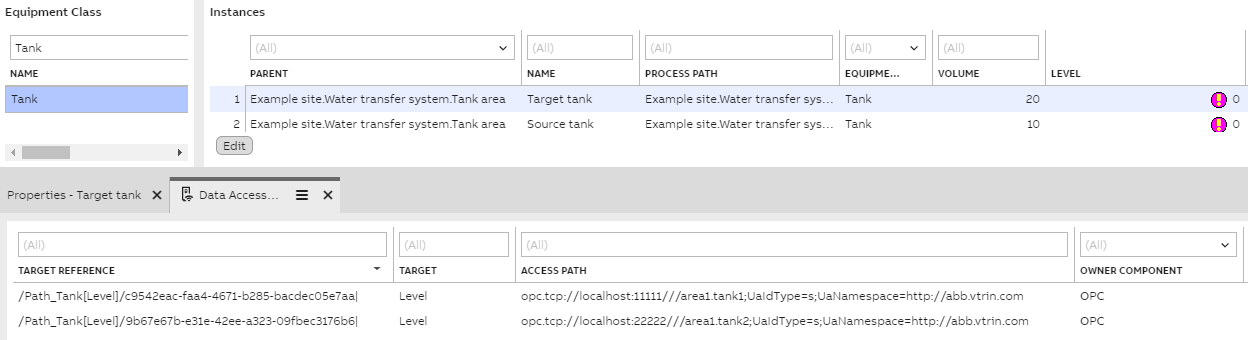
The result can be visualized in Engineering UI:
A model table can inherit properties from another model table by appending : <base table name>.
- For example: Class : Tank : Mechanical device, means Tank inherits all properties from Mechanical device.
Water Tank Bulk Load Tool Example
On our second example, we will look more into inheritance.
Instance table
First we need to define our model to create instances for it.
Instance table starts with a keyword Instance : <name of model>. The above example instantiates two tanks; source and target. The header contains the properties of the model; location (Parent, Name) of equipment model and URI parts.
Properties are for defining the values for each property. Locations are for defining instance's location Equipment Model. URI parts are to define where data is collected, and also if it is an input or output of data. If some URI parts are empty, then the parsing program tries to use the last value from the same column. However, this can be overwritten, see Water Tank System example for more.
| Instance: Tank | Parent | Name | Level | Volume | Protocol | Server location | Port | UaNamespace | Level.output |
|---|---|---|---|---|---|---|---|---|---|
| Example site.Water transfer system.Tank area | Source tank | area1.tank1 | 10 | opc.tcp | localhost | 11111 | <http://abb.vtrin.com> | ||
| Example site.Water transfer system.Tank area | Target tank | area1.tank2 | 20 | 22222 | true |
The instance table above generates the following JSON file:
{
  "ClassData": [
       {
      "Class": "DataAccessSource",
      "Instances": [
        {
          "TargetReference": "/Path_Tank[Level]/c9542eac-faa4-4671-b285-bacdec05e7aa|",
          "AccessPath": "opc.tcp://localhost:11111///area1.tank1;UaIdType=s;UaNamespace=http://abb.vtrin.com",
          "OwnerComponent": 0,
          "AccessType": 0
        },
        {
          "TargetReference": "/Path_Tank[Level]/9b67e67b-e31e-42ee-a323-09fbec3176b6|",
          "AccessPath": "opc.tcp://localhost:22222///area1.tank2;UaIdType=s;UaNamespace=http://abb.vtrin.com",
          "OwnerComponent": 0,
          "AccessType": 0,
          "Output": true
        }
      ]
    },
    {
      "Class": "Path_Tank",
      "Instances": [
        {
          "Id": "c9542eac-faa4-4671-b285-bacdec05e7aa",
          "Name": "Example site.Water transfer system.Tank area.Source tank",
          "Volume": "10"
        },
        {
          "Id": "9b67e67b-e31e-42ee-a323-09fbec3176b6",
          "Name": "Example site.Water transfer system.Tank area.Target tank",
          "Volume": "20"
        }
      ]
    }
  ]
}
Instances are listed under Path_<model name>, their locations in Equipment Model are the value of "Name". If a user has defined that historized properties are to be collected, these information instances are stored under DataAccessSource, in the JSON file.
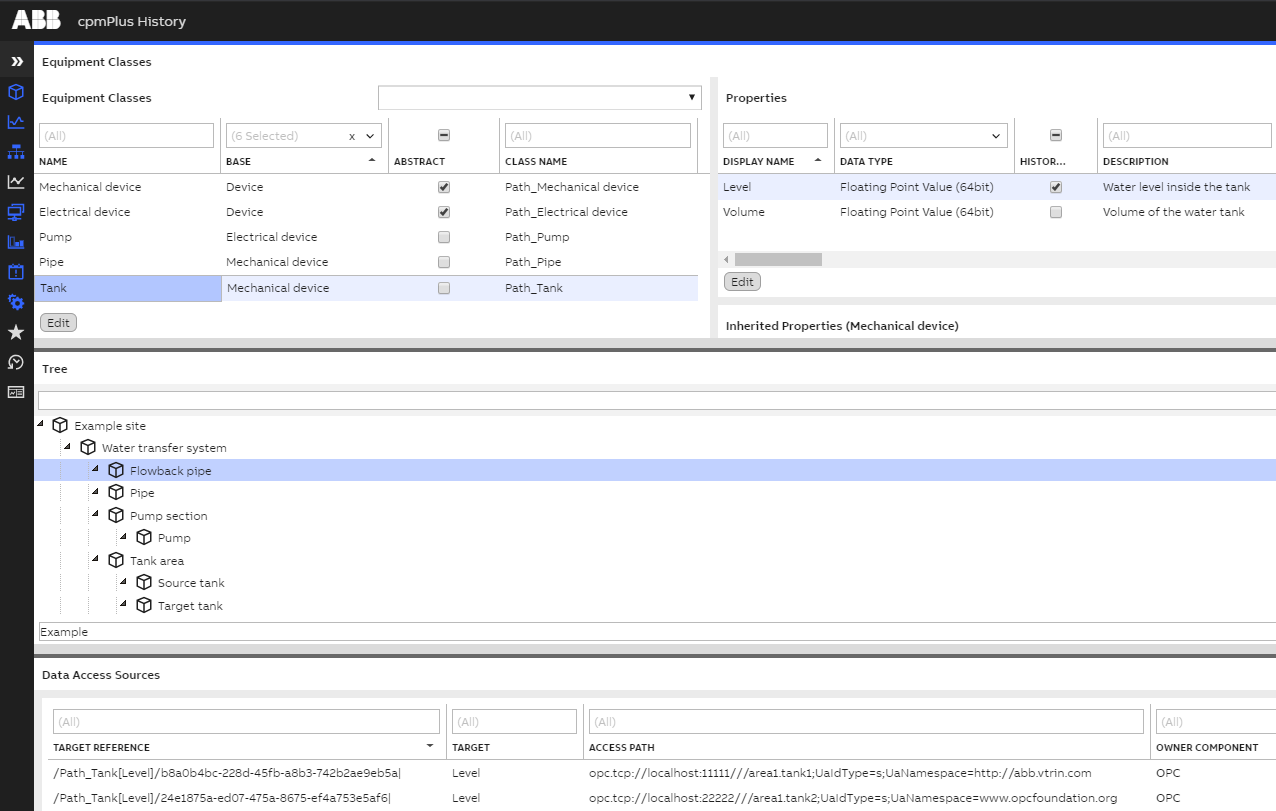
After committing the JSON file, we will get the following Equipment Model:
Good to know
- Tables' order doesn't matter.
- All header names except the URI parts are case-sensitive, e.g. referencetarget is not the same as ReferenceTarget.
- If ReferenceTarget is used to refer to an enumeration, make sure the enumeration is already created.
- Special class reference can be defined in Type-column as ERef: Tank. See example.
- Empty rows are skipped.
- Tables with empty headers will be trimmed at the first empty column of that specific table.
Water Pump System Example
](https://files.readme.io/9c44951-ExampleMode.png)
Defining the model
Let's model the Water Pump System above. According to the image, there are three types of equipment: Tank, Pipe, and Pump.
The equipments have the following properties:
- Tank: level and volume.
- Pipe: diameter and flow
- Pump: current power, nominal power, source tank, target tank, operational state and power state.
Pumps are electrical devices and all electrical devices have voltage-property:
- Electrical device: voltage.
Pump inherits all the properties of electrical device. On the other hand, pipes are mechanical devices. In this example mechanical device doesn't have a property.
All devices have one common property:
- Device: manufacturer
Modeling the system
| AbstractClass : Device | Type | Description |
|---|---|---|
| Manufacturer | String | Manufacturer of the device |
Device is an abstract class which has one property Manufacturer. Manufacturer type is string.
| AbstractClass : Electrical device : Device | Type | Description |
|---|---|---|
| Voltage | Double | Device Voltage |
Electrical device is an abstract class which has Voltage as property. Electrical device inherits properties from Device, Manufacturer. Voltage's type is double, 64 bits floating-point.
| AbstractClass : Mechanical device : Device |
|---|
Mechanical device is an abstract class that inherits properties from Device. All the above models are abstract, thus can't be instantiated.
| Class : Tank : Mechanical device | Type | Description | Unit | Historized |
|---|---|---|---|---|
| Level | Double | Water level inside the tank | m | True |
| Volume | Double | Volume of the water tank | m3 |
Tank has Level- and Volume-property. Tank inherits properties from the Mechanical device class (including from Device). Level is marked as historized. Both properties are double typed, 64 bits floating-point.
| Class : Pipe : Mechanical device | Type | Description | Unit | ValueMax |
|---|---|---|---|---|
| Diameter | Double | Diameter of the pipe | cm | |
| Flow | Double | Current water flow through the pipe | l/min | 1000 |
Pipe has Diameter- and Flow-property. Pipe inherits properties from the Mechanical device class (inhered three properties). Both properties are double. Only Flow-property is capped to a thousand liters per minute.
| Class : Pump : Electrical device | Type | Description | Unit | ReferenceTarget |
|---|---|---|---|---|
| Current power | Double | Current power of the pump | W | |
| Nominal power | Double | Nominal power of the pump | W | |
| Source tank | The tank, from which the pump is pumping | Class:Path_Tank | ||
| Target tank | The tank to which the pump is pumping water | Class:Path_Tank | ||
| Operational state | Boolean | Is pump running or not | ||
| Power state | Boolean | Is pump powered or not |
Pump has six properties defined and two from inheritance, eight properties in total. Source tank and Target tank type is Tank, which means the defined Tank-model above. This is also known as class reference.
Instances
After the models are defined, they can be instantiated according to the image. In this example the system has one pump, two pipes, and two tanks:
| Instance : Tank | Parent | Name | GOT IGNORED | Level | Volume | Level.UaNamespace | Protocol | Server location | Port | UaNamespace | Level.input | Level.output |
|---|---|---|---|---|---|---|---|---|---|---|---|---|
| Example site.Water transfer system.Tank area | Source tank | foo | area1.tank1 | 20 | opc.tcp | localhost | 11111 | <http://abb.vtrin.com> | True | |||
| Example site.Water transfer system.Tank area | Target tank | bar | area1.tank2 | 30 | www.opcfoundation.org | 22222 | True |
Create your own
- Create two tanks for source and target. The location of the source and target tanks in the Equipment Model-tree is the combination of Parent and Names:
- Example site.Water transfer system.Tank area
- Example site.Water transfer system.Target tank
Headers that don't belong to the property list nor predefined list will be ignored, such as GOT IGNORED. Level property is historized and data collection location is defined in Protocol, Server location and Port columns. The second instance inherits the protocol and server location values of their columns. However, port number and UaNamespace of the second instance have been specifically assigned to 22222 and www.opcfoundation.org, respectively.
| Instance : Pipe | Parent | Name | Diameter | Flow | Protocol | Server location |
|---|---|---|---|---|---|---|
| Example site.Water transfer system | Pipe | |||||
| Example site.Water transfer system | Flowback pipe |
- Create two pipes. Their location in Equipment Model-tree is a combination of Parent and Name. Empty property columns can be removed, see below table.
| Instance: Pump | Parent | Name |
|---|---|---|
| Example site.Water transfer system.Pump section | Pump |
- Create one pump instance in Example site.Water transfer system.Pump section.Pump of Equipment Model.
After parsing the above tables, the following JSON file will be generated:
{
  "ClassData": [
    {
      "Class": "Equipment",
      "Instances": [
        {
          "Abstract": true,
          "Id": "e9a13557-db32-467a-aed6-1690331322c3",
          "Name": "Device",
          "ClassName": "Path_Device"
        },
        {
          "Abstract": true,
          "Id": "19e8c8a5-2007-4778-a423-bb18e731a769",
          "Name": "Mechanical device",
          "ClassName": "Path_Mechanical_device",
          "Base": "e9a13557-db32-467a-aed6-1690331322c3"
        },
        {
          "Abstract": true,
          "Id": "f7289e92-1e52-4a6c-b47d-d5b2f4257c20",
          "Name": "Electrical device",
          "ClassName": "Path_Electrical_device",
          "Base": "e9a13557-db32-467a-aed6-1690331322c3"
        },
        {
          "Id": "69ed728d-a04a-4529-8783-7c57642684cf",
          "Name": "Pipe",
          "ClassName": "Path_Pipe",
          "Base": "19e8c8a5-2007-4778-a423-bb18e731a769"
        },
        {
          "Id": "d5f38ddb-86ff-4414-9217-d3e0dc023f15",
          "Name": "Tank",
          "ClassName": "Path_Tank",
          "Base": "19e8c8a5-2007-4778-a423-bb18e731a769"
        },
        {
          "Id": "1d5caeca-31b4-41fc-8d66-d3cd03c28bdb",
          "Name": "Pump",
          "ClassName": "Path_Pump",
          "Base": "f7289e92-1e52-4a6c-b47d-d5b2f4257c20"
        }
      ]
    },
    {
      "Class": "EquipmentPropertyInfo",
      "Instances": [
        {
          "Id": "844baf25-1412-4a09-9f60-fd79de5bdc68",
          "DisplayName": "Manufacturer",
          "Equipment": "e9a13557-db32-467a-aed6-1690331322c3",
          "Type": 18,
          "Description": "Manufacturer of the device"
        },
        {
          "Id": "174fe4c9-be2b-4e64-ae27-2f13c0a682b6",
          "DisplayName": "Voltage",
          "Equipment": "f7289e92-1e52-4a6c-b47d-d5b2f4257c20",
          "Type": 14,
          "Description": "Device Voltage"
        },
        {
          "Id": "1c9ec2f9-7491-4f7f-b43e-1488321e55c7",
          "DisplayName": "Diameter",
          "Equipment": "69ed728d-a04a-4529-8783-7c57642684cf",
          "Type": 14,
          "Description": "Diameter of the pipe",
          "Unit": "cm"
        },
        {
          "Id": "bd455aa0-fdab-4257-b7b8-baf06a65dcef",
          "DisplayName": "Flow",
          "Equipment": "69ed728d-a04a-4529-8783-7c57642684cf",
          "Type": 14,
          "Description": "Current water flow through the pipe",
          "Unit": "l/min",
          "ValueMax": "1000"
        },
        {
          "Id": "0a34ba37-c22f-49fd-bef4-fec200f1896b",
          "DisplayName": "Level",
          "Equipment": "d5f38ddb-86ff-4414-9217-d3e0dc023f15",
          "Type": 14,
          "Description": "Water level inside the tank",
          "Unit": "m",
          "Historized": true
        },
        {
          "Id": "c56da211-ab3a-46e7-8e66-ff18d9c57f18",
          "DisplayName": "Volume",
          "Equipment": "d5f38ddb-86ff-4414-9217-d3e0dc023f15",
          "Type": 14,
          "Description": "Volume of the water tank",
          "Unit": "m3"
        },
        {
          "Id": "46932777-f86c-4d61-9ef0-a18c394d6699",
          "DisplayName": "Current power",
          "Equipment": "1d5caeca-31b4-41fc-8d66-d3cd03c28bdb",
          "Type": 14,
          "Description": "Current power of the pump",
          "Unit": "W"
        },
        {
          "Id": "62b369c9-887a-492d-b9d2-747b6c3d2f5e",
          "DisplayName": "Nominal power",
          "Equipment": "1d5caeca-31b4-41fc-8d66-d3cd03c28bdb",
          "Type": 14,
          "Description": "Nominal power of the pump",
          "Unit": "W"
        },
        {
          "Id": "b1c8456d-008c-4fd8-93b0-bae973f499ec",
          "DisplayName": "Source tank",
          "Equipment": "1d5caeca-31b4-41fc-8d66-d3cd03c28bdb",
          "Type": 241,
          "Description": "The tank that pump is pumping water from"
        },
        {
          "Id": "154b3e9c-a1de-4f8a-9256-2876e2d3d92a",
          "DisplayName": "Target tank",
          "Equipment": "1d5caeca-31b4-41fc-8d66-d3cd03c28bdb",
          "Type": 241,
          "Description": "The tank that pump is pumping water into"
        },
        {
          "Id": "65b6a38e-90a9-40de-b2cb-74e2a5be8d48",
          "DisplayName": "Operational state",
          "Equipment": "1d5caeca-31b4-41fc-8d66-d3cd03c28bdb",
          "Type": 3,
          "Description": "Is pump running or not"
        },
        {
          "Id": "4e5db708-63d1-46c4-bf67-af3295600cd5",
          "DisplayName": "Power state",
          "Equipment": "1d5caeca-31b4-41fc-8d66-d3cd03c28bdb",
          "Type": 3,
          "Description": "Is pump powered or not"
        }
      ]
    },
    {
      "Class": "DataAccessSource",
      "Instances": [
        {
          "TargetReference": "/Path_Tank[Level]/b8a0b4bc-228d-45fb-a8b3-742b2ae9eb5a|",
          "AccessPath": "opc.tcp://localhost:11111///area1.tank1;UaIdType=s;UaNamespace=http://abb.vtrin.com",
          "OwnerComponent": 0,
          "AccessType": 0,
          "Input": true
        },
        {
          "TargetReference": "/Path_Tank[Level]/24e1875a-ed07-475a-8675-ef4a753e5af6|",
          "AccessPath": "opc.tcp://localhost:22222///area1.tank2;UaIdType=s;UaNamespace=www.opcfoundation.org",
          "OwnerComponent": 0,
          "AccessType": 0,
          "Output": false
        }
      ]
    },
    {
      "Class": "Path_Tank",
      "Instances": [
        {
          "Id": "b8a0b4bc-228d-45fb-a8b3-742b2ae9eb5a",
          "Name": "Example site.Water transfer system.Tank area.Source tank",
          "Volume": "1"
        },
        {
          "Id": "24e1875a-ed07-475a-8675-ef4a753e5af6",
          "Name": "Example site.Water transfer system.Tank area.Target tank",
          "Volume": "5"
        }
      ]
    },
    {
      "Class": "Path_Pipe",
      "Instances": [
        {
          "Id": "b7a1198a-f9f8-4c9b-81a7-2c908e52681d",
          "Name": "Example site.Water transfer system.Pipe"
        },
        {
          "Id": "b4fcc330-ef56-4681-a9a3-867f8b55a624",
          "Name": "Example site.Water transfer system.Flowback pipe"
        }
      ]
    },
    {
      "Class": "Path_Pump",
      "Instances": [
        {
          "Id": "0d6fbf47-d88c-4265-beb2-8b43bcc3159b",
          "Name": "Example site.Water transfer system.Pump section.Pump"
        }
      ]
    }
  ]
}
The generated JSON is a bit longer. The complete water system model is ready to be imported to database.
Creating a button for parsing in Excel application
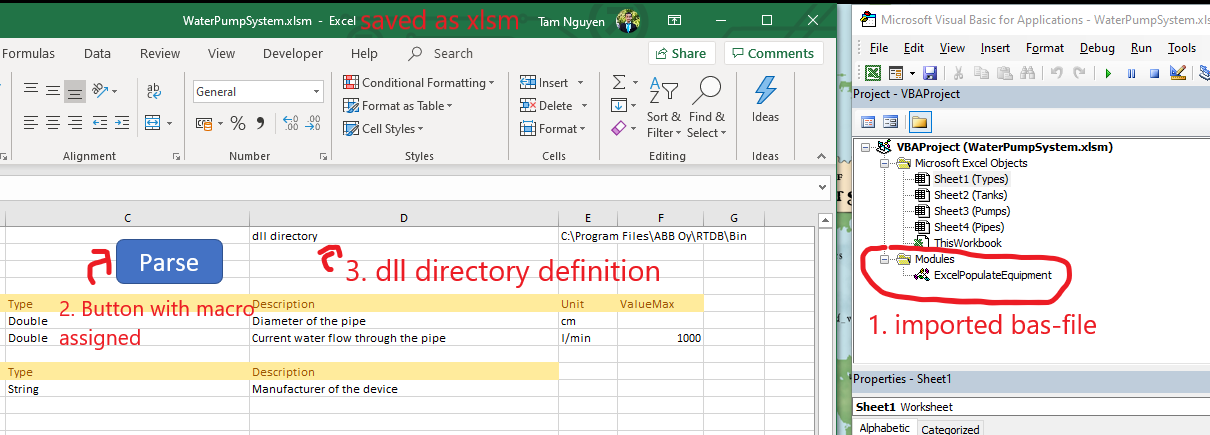
- Import RTDB\Config\ExcelPopulateEquipment.bas in VBA editor
- Create a shape (button) and assign the imported macro.
- Define a directory location of ExcelPopulateEquipmentDLL.dll in excel.
- Make sure macro is enabled in the Excel application.
- Save the excel file as a xlsm.
Included model setup image below, so users can compare with.
Exporting Tutorials
Here are some examples to export equipments from RTDB to local machine. The exported file is an excel file.
#Exporting All Equipments and Instances from RTDB
ExcelPopulateEquipment --connectionstring C:\RTDB1\rtdbdata

#Exporting Specific Equipments and Instances From RTDB
ExcelPopulateEquipment --connectionstring C:\RTDB1\rtdbdata --export-equipment ThisEquipment --export-equipment OtherEquipment

#Exporting to Specific Location
ExcelPopulateEquipment --connectionstring C:\RTDB1\rtdbdata --output T:\ModelAndInstances.xlsm

#Exporting from Remote RTDB
ExcelPopulateEquipment --connectionstring wss://remotemachine/history --acceptnewkeys --output T:\ModelAndInstances.xlsm --user UserName
Links
- Download ProtocolsExamples.xlsx for a sample.
Updated about 2 months ago