

User Menu Options
This article discusses settings in user menu in Engineering UI.
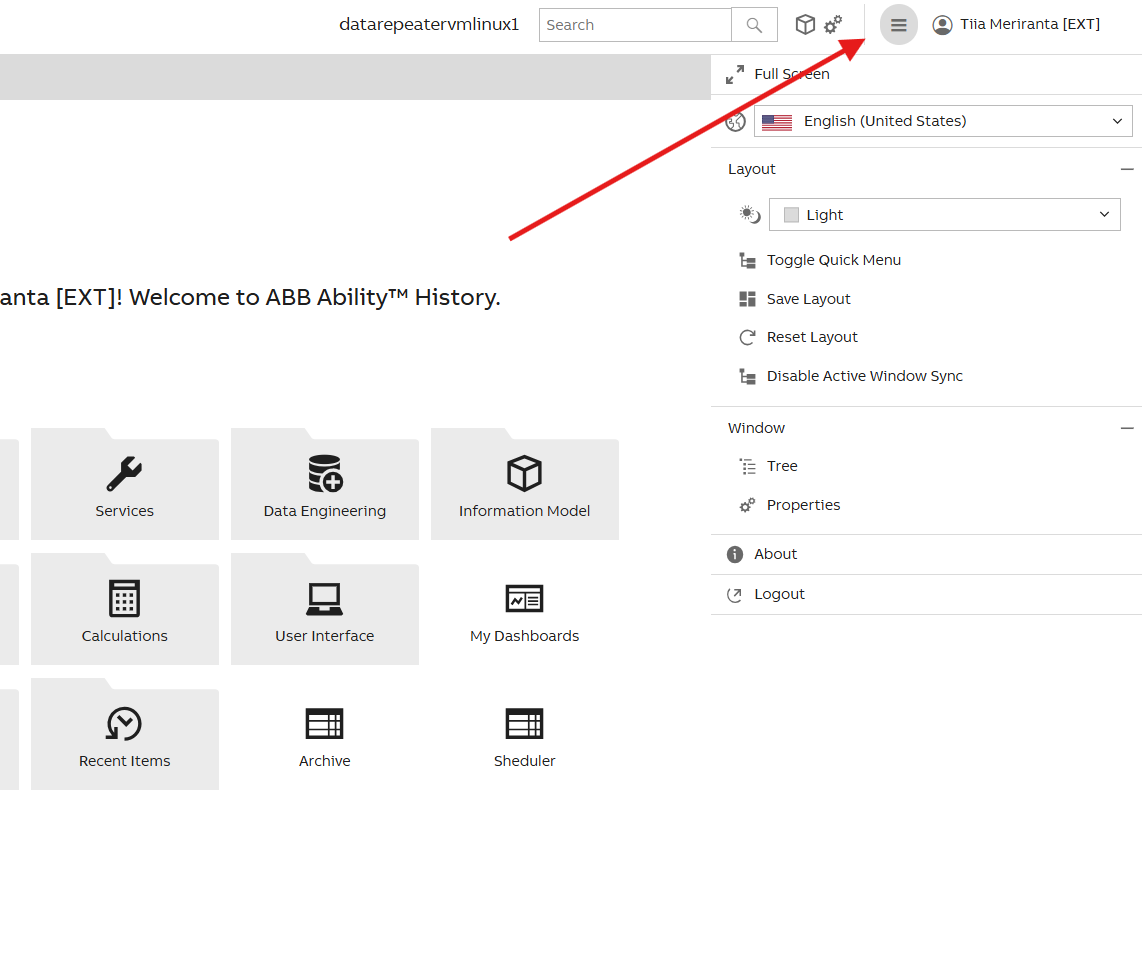
First, we open the hamburger menu on the top right corner. This will open a secondary menu, user menu, with different options shown in image +below.
Layout
Themes
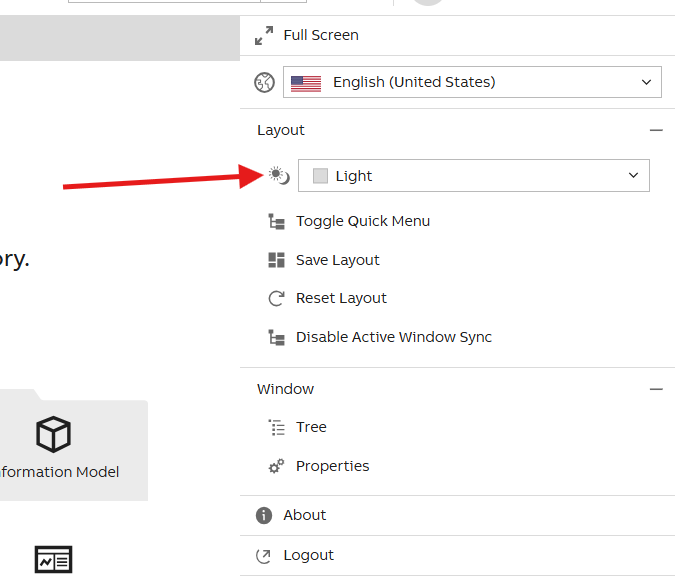
Engineering UI has two themes; light and dark. You can find these settings under Layout section as shown in the picture below.
Toggle Quick Menu
This opens the Engineering UI tree menu to the left side.
Save Layout and Reset Layout
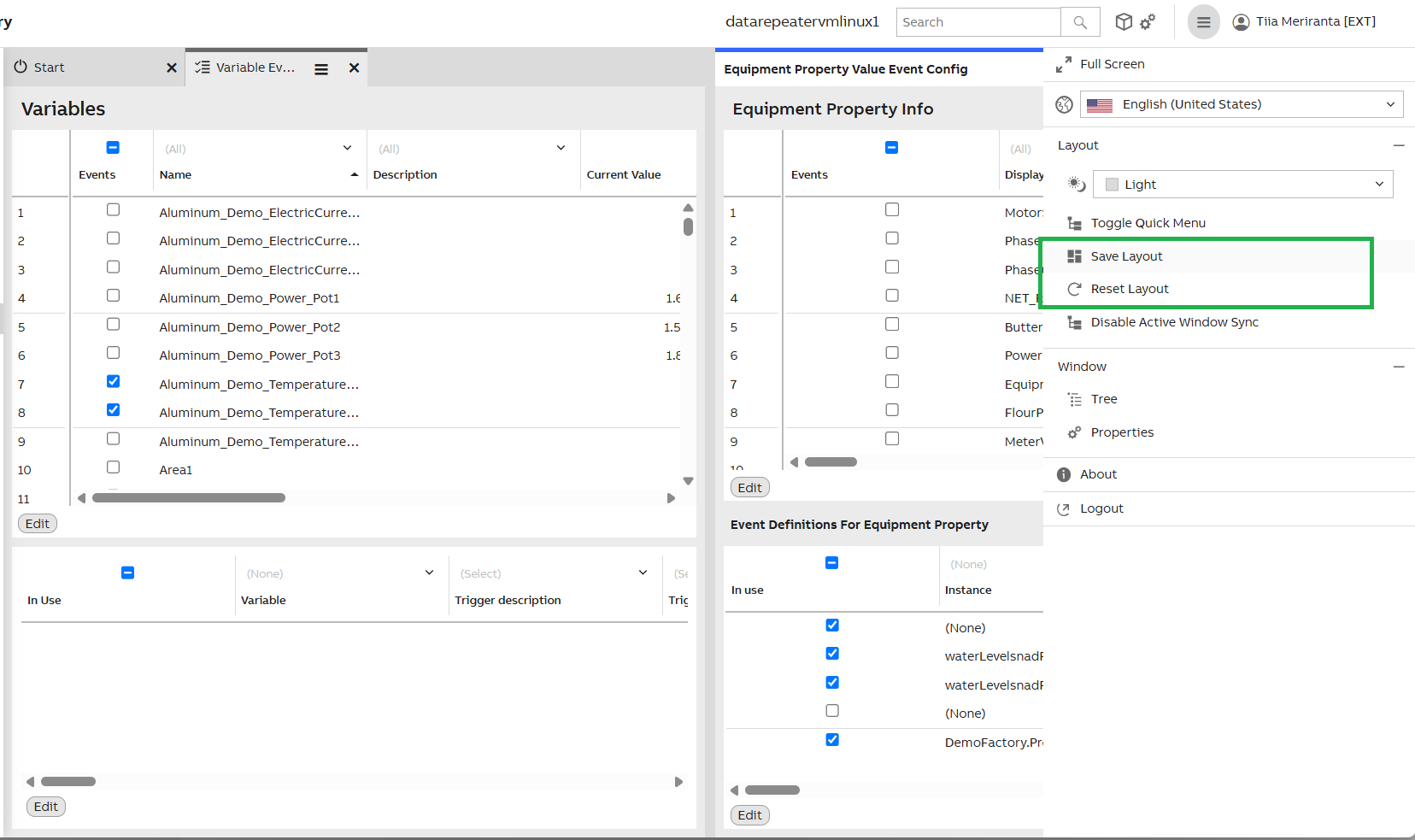
You can create a custom layout for displays and reset it when it is no longer needed. Steps to configure:
-
Open the displays in Engineering UI you want to be included in the same frame.
-
Detach one of the tabs from the tab ribbon. This will bring out five black squares to the screen that allow you to replace the floating tab. Drag the tab on top of one of the squares to see how it would be placed. Drop the tab by letting go of the mouse when the placement is as wished. Repeat this with the other tabs as well.
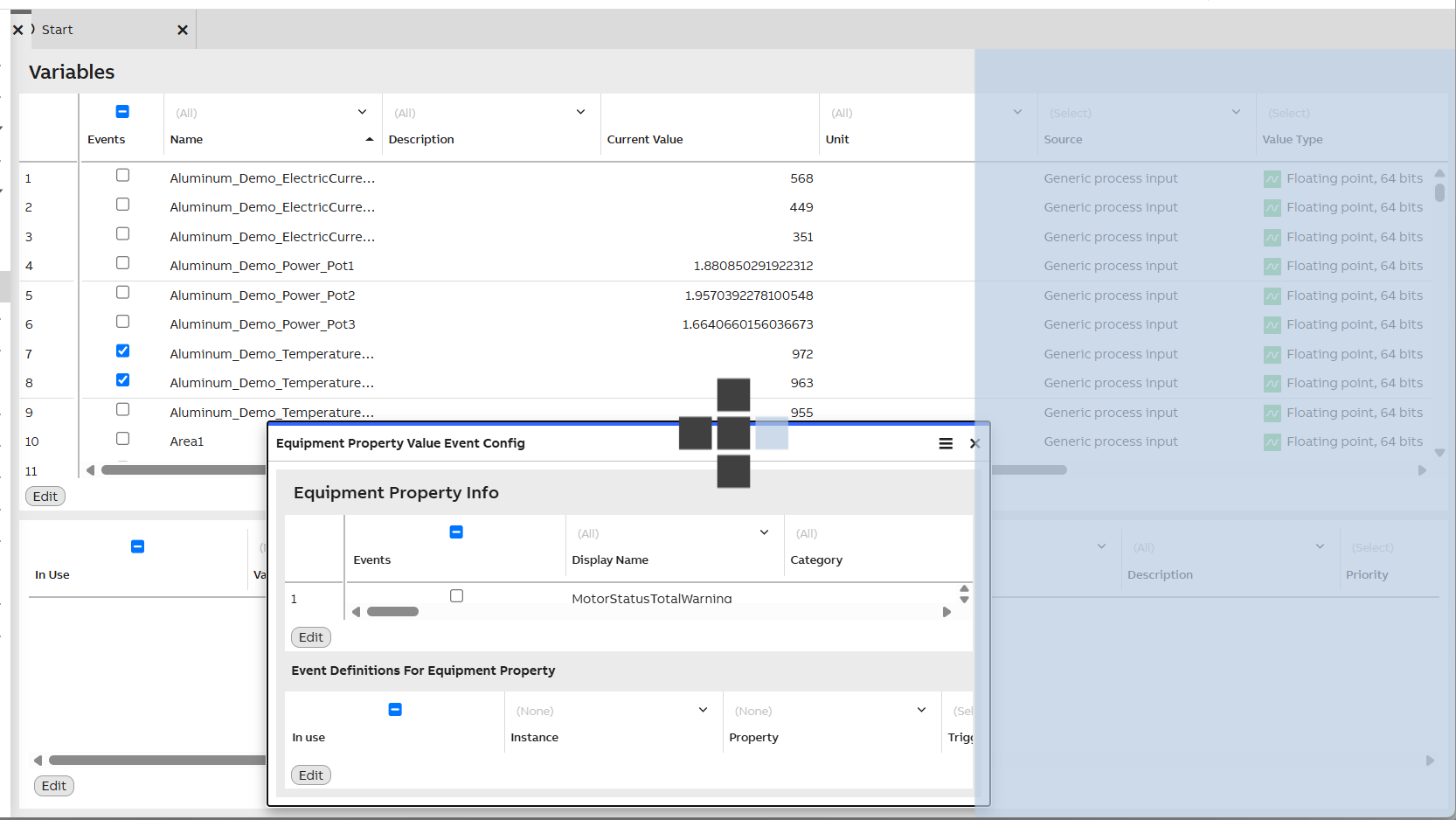
Detached floating tab can be placed on display in multiple ways.
-
You can resize the tabs as you wish.
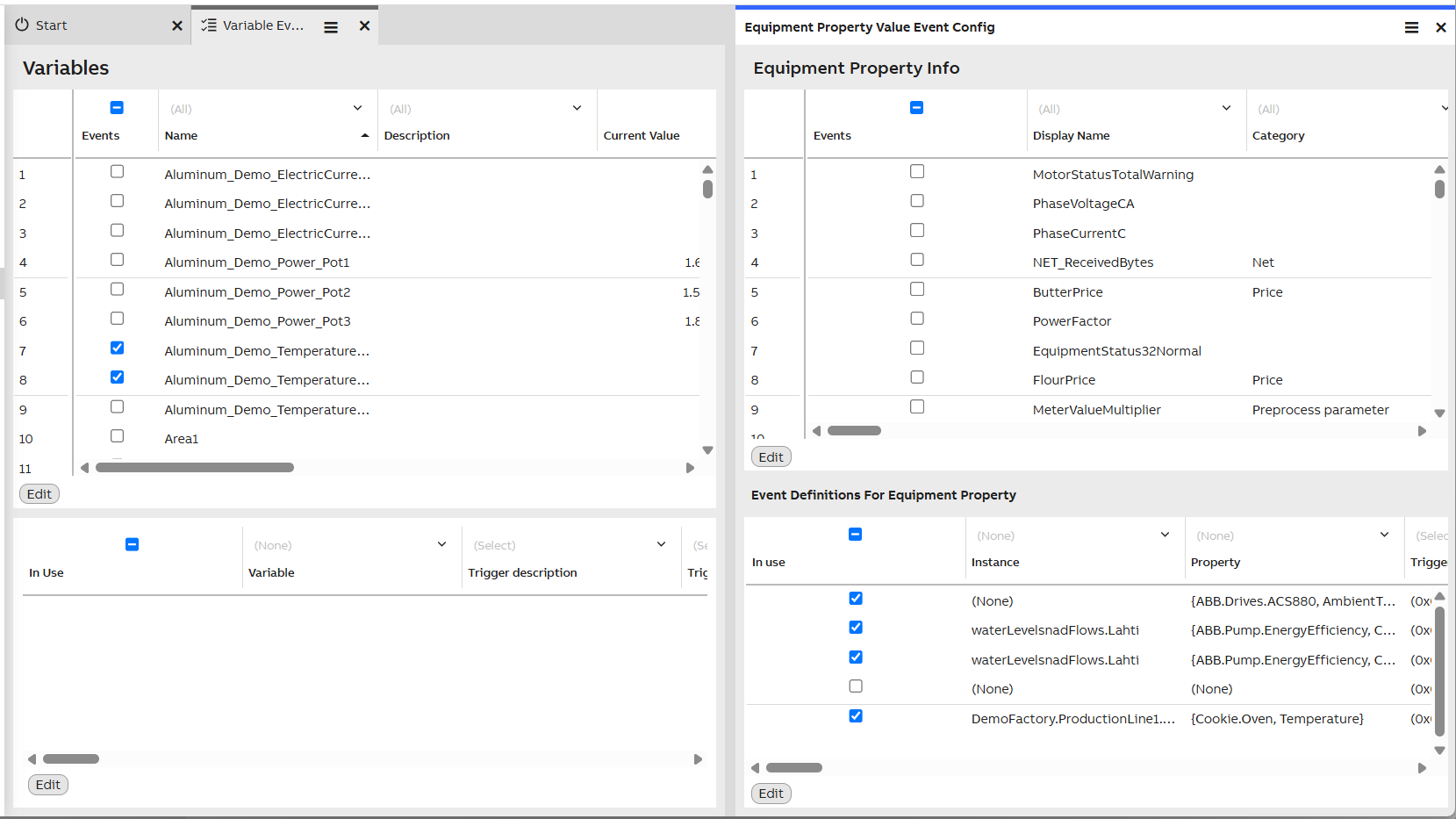
Now the two displays are combined in one.
-
After all tabs are placed and sized as wished, open the hamburger menu on the top right corner and press Save Layout.
-
After the layout was successfully saved, refresh the Engineering UI and the new layout should open.
-
If you don't want to use the created layout, simply choose Reset Layout in the hamburger menu. The page will refresh and after opens the Engineering UI with the default display settings.
Disable (and Enable) Active Window Sync
Active tab shows hovered on tree menu as well. The hovering follows when we switch between tabs. This can be disabled. When disabled, the tree menu shows the latest selection. This action can be enabled later, if needed.
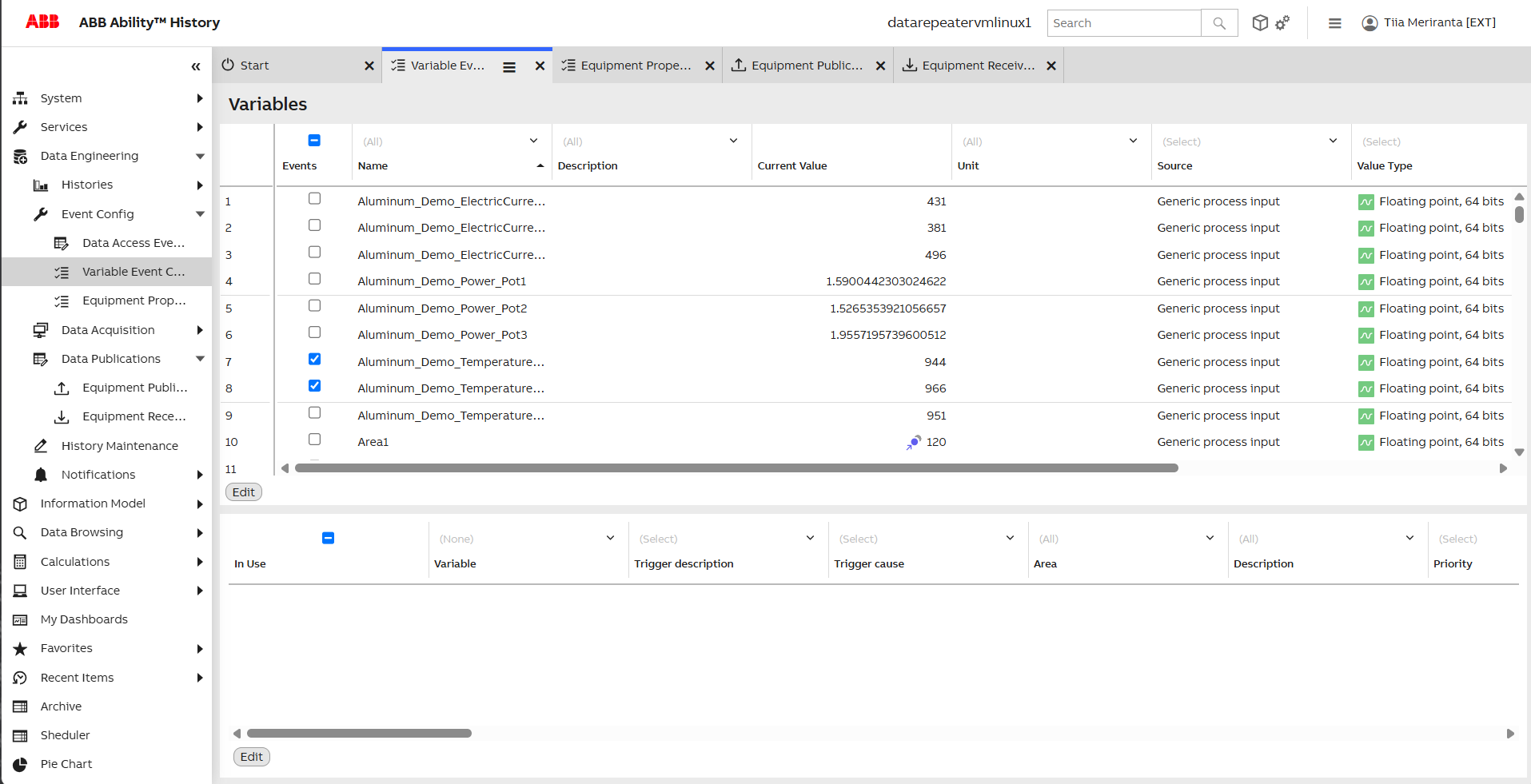
Active tab shows selection on side menu as well.
Window
Tree
This opens the Tree menu on a pop-up window on top of the display.
Properties
This opens Property menu on the right side of the display.
About
This opens a pop-up window with version and build date information.
Logout
Logs the user out of Engineering UI.
Updated 28 days ago