
Batch calculation
Overview
Normal calculation task configuration provide constant deterministic calculation periods. In some scenarios a user might need dynamic calculation period according to e.g. factory production events. Batch job calculation mode can be used to serve this purpose.
After enabling batch job for calculation, the calculation process will track changes in the chosen batch indicator signal. Every change will separate batches - time spans that serve as calculation periods.
Calculation Period OffsetIf calculation task has period offset configured, the invocation of the calculation of the previous batch will be done after a delay equal to the period offset.
It is important to note that the default calculation period for the batch job is always the previous completed batch, i.e. time period between the two last changes of the batch indicator signal.
Batch indicator
Batch indicator defines the calculation period and it can be used to trigger the calculation execution, though the execution can also be started with scheduler or event trigger. Batch indicator should always be a Variable or historized Equipment property.
Note for further guidance:
- If you need further information on configuring properties and historizing them in Engineering UI, please find further information here.
- Overriding property attributes in Engineering UI is simple and can be done on instance level. Check short tutorial here.
Compression checks in the Calc UI
When a batch indicator is selected in the Calc task editor, the UI validates the compression settings of the selected indicator and shows a warning if compression is active.
For reliable batch detection, ABB recommends using a Variable or historized Equipment property with compression disabled (NoCompression).
The validation works as follows:
- For a Variable batch indicator, the editor checks the variable
CompressionMethod. - For a historized Equipment property batch indicator, the editor first validates that:
Batch Propertyis specified- the selected property exists on the target equipment instance
- the selected property is historized
For Equipment properties, compression is resolved in this order:
- Instance-level
<PropertyName>_CompressionMethod - Class-level
EquipmentPropertyInfo.CompressionMethod - Inherited class-level property settings from base equipment classes
If compression is enabled, the editor shows a warning with a more specific explanation, for example:
- the equipment property has an instance-level compression setting and it is enabled
- the equipment property has no instance-level override, but class-level compression is enabled
If Batch Property is missing, not historized, or does not exist on the selected equipment instance, the editor shows an error and the compression check is not completed.
This guidance is informational and helps avoid confusing batch boundaries or unexpected calculation results when batch indicators are compressed.
Usage
To enable batch job support, tick the slider in the calculation task windows at the bottom left corner. Ticking it back to "Off" state will disable batch job support and will prompt the user to leave or delete a batch indicator mapping.
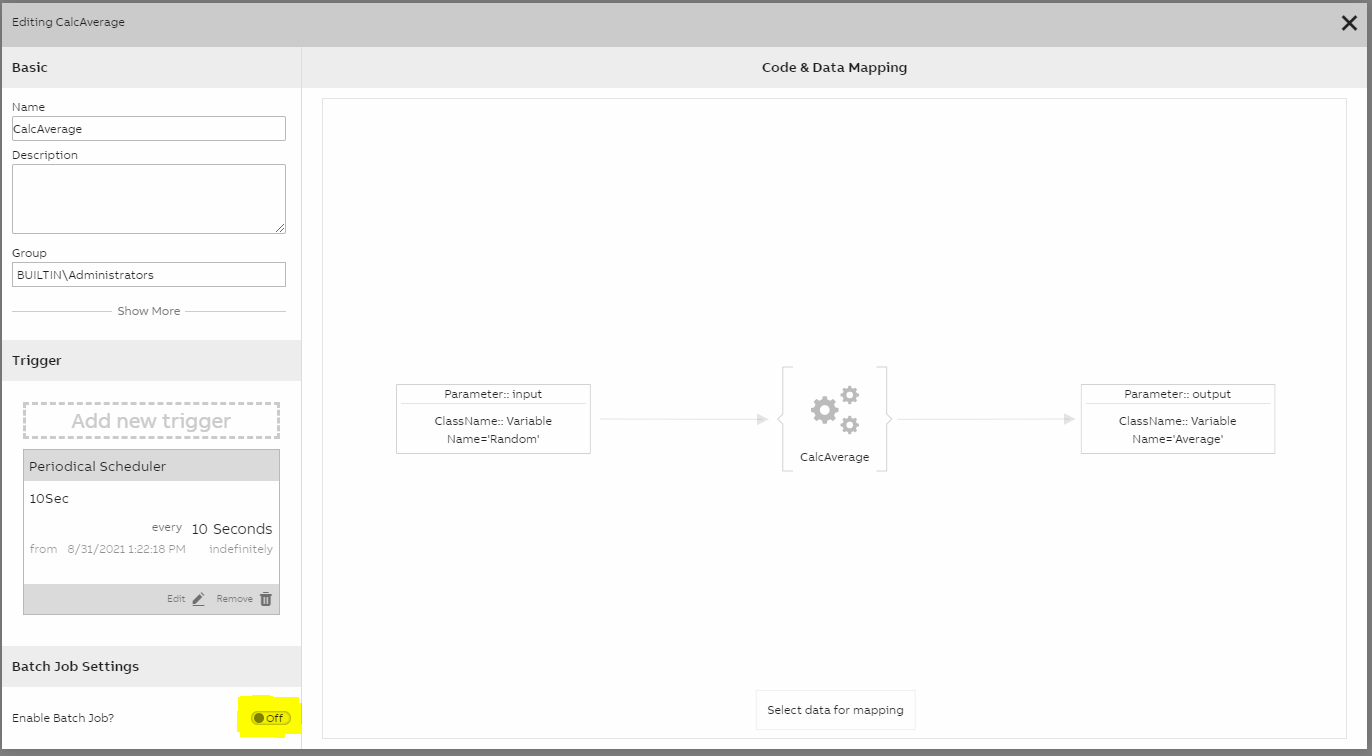
Batch Job slider
After enabling the batch job support, select the appropriate batch job variable. Picking different options will auto populate the required fields in the calculation task table. Closing this window will save changes and shortly after the calculation will start to work in a batch mode.
Tutorial
We have created an example of production planning and monitoring for a batch process. You can find it here. This example is purely done in our Engineering UI and requires coding only when creating calculations. This includes further details on creating batch calculations and how batch tracking can be done in dashboards.